
Employee Login & User Guide
Employee Login & User Guide
Overview
This guide provides a step-by-step explanation of how an employee can log in, access their dashboard, manage their profile, and use the communication features in the system. Screenshots can be added in the placeholders provided.
Login to Employee Portal
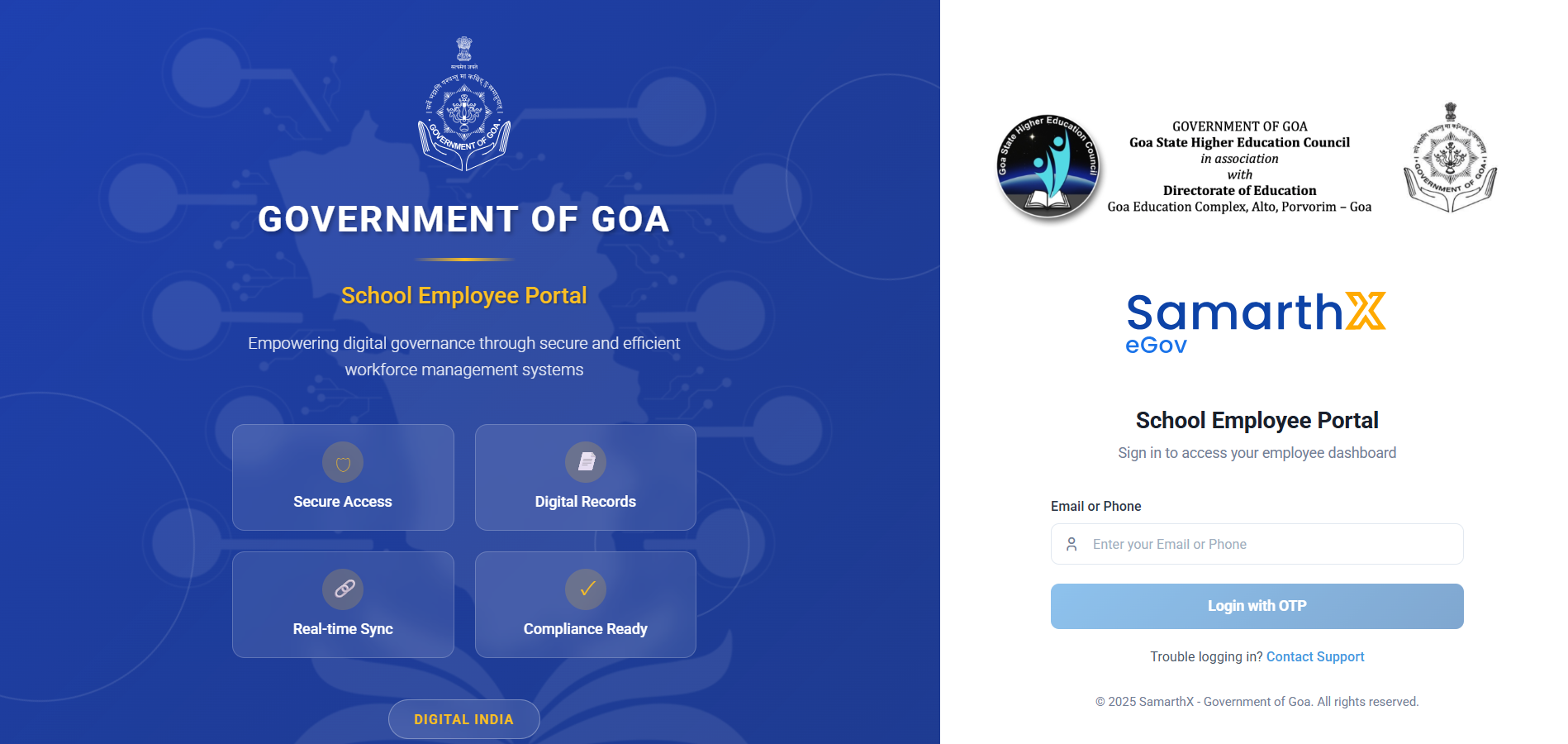
Step 1: Open the Login Page
- Open the SamarthX Employee Portal in your browser.
Step 2: Enter Your Login Credentials
-
Enter your login credentials — either email address or phone number.
- Click Login.
- You will receive a One-Time Password (OTP) on your registered email or phone.
-
Enter the OTP in the provided field and click Verify to access the Employee dashboard.
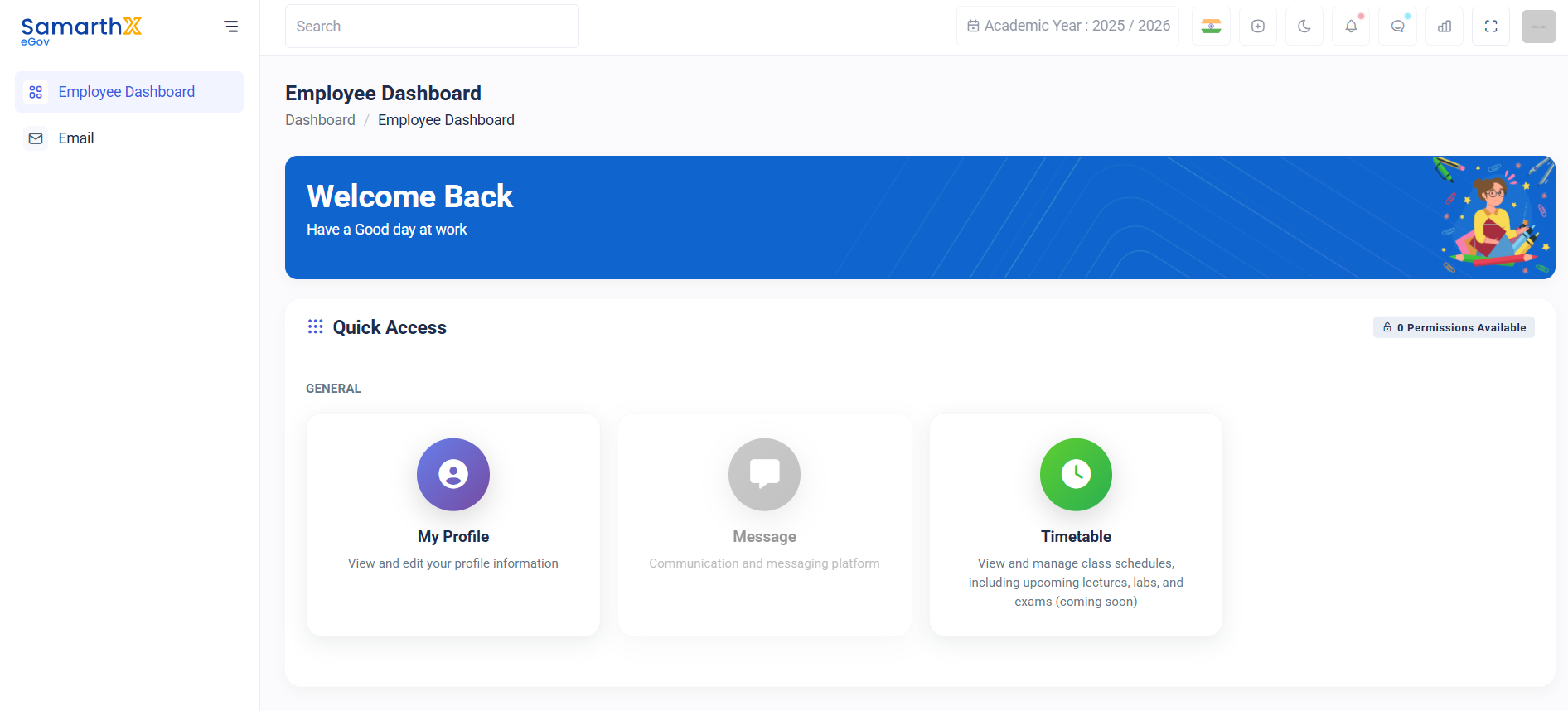
Employee Dashboard
Once logged in, the user will be redirected to their dashboard.
Dashboard Overview
The dashboard provides quick access to important features, including:
-
Profile (view and edit personal details)
-
iCommunicate (communication module)
-
Other quick-access modules (depending on assigned permissions)
Dashboard Permissions
Permissions control what an employee can view or perform within the system. These permissions are assigned and managed by the School Administrator, and access may vary for each employee depending on their role and responsibilities.
Below is a detailed explanation of each permission:
1. Employee Create Access
Allows the user to create new employee records within the system. This is usually provided to administrative staff who manage employee onboarding.
2. Employee List Access
Grants the ability to view the complete list of employees registered in the school’s system. Users can browse, filter, or search employees as per the available options.
3. Employee Export Access
Enables the user to export employee data in supported formats. This feature is typically used for reporting or compliance purposes.
4. Employee Read Access
Allows the user to open and view an employee’s detailed profile, including personal, professional, contact, and address information. No editing rights are included with this permission.
5. Employee Document Read Access
Provides access to view documents uploaded by employees, such as profile photo, signature, identity card, pan card, aadhaar card
etc. Only viewing is allowed—no modification.
6. Employee Update Access
Grants the ability to edit or update an employee’s profile details. Users with this permission can modify fields such as personal details, professional information, contact and address information.
7. Employee Document Update Access
Allows the user to upload, edit, or update employee-related documents. This includes replacing old documents or adding new ones.
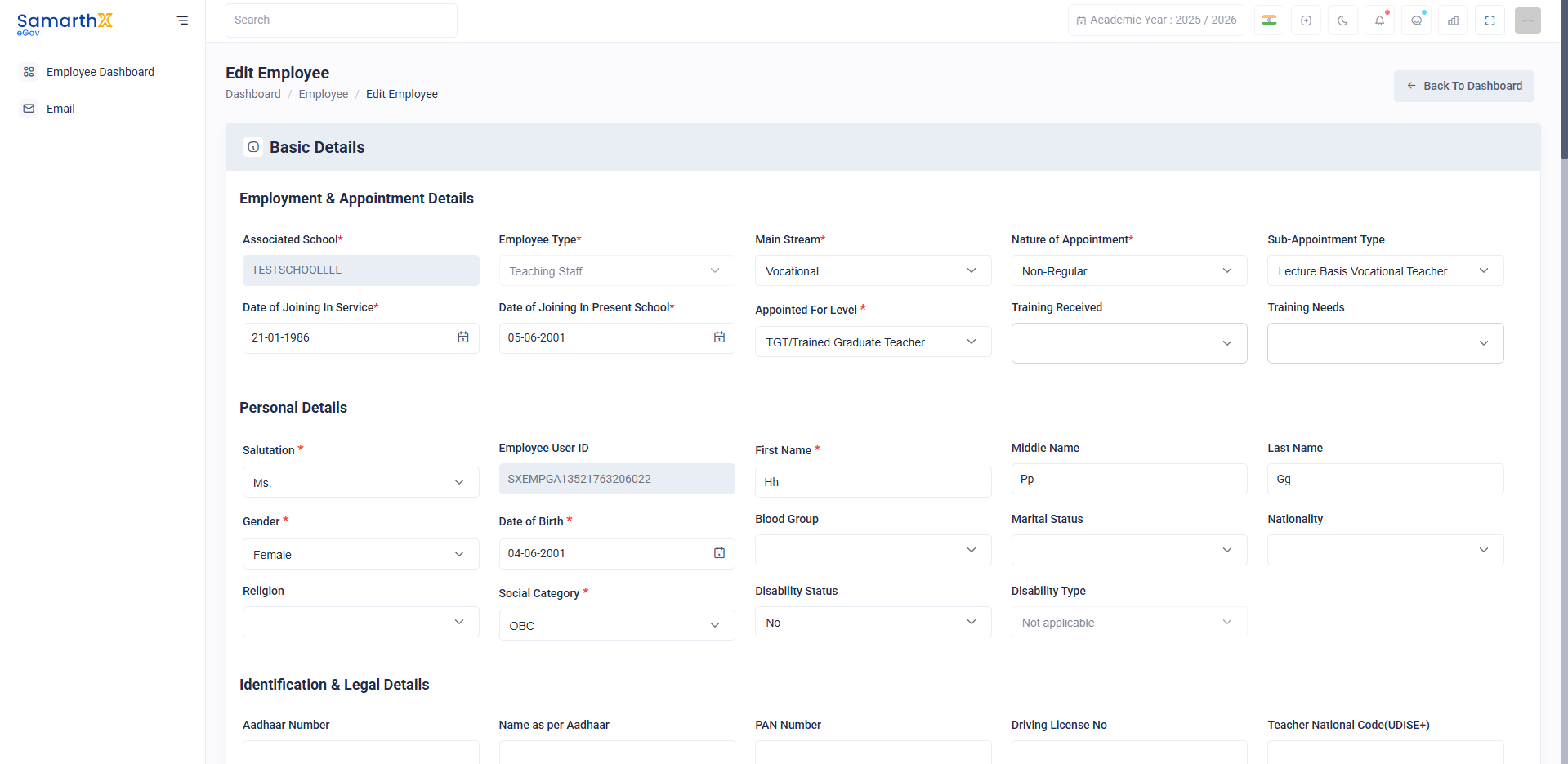
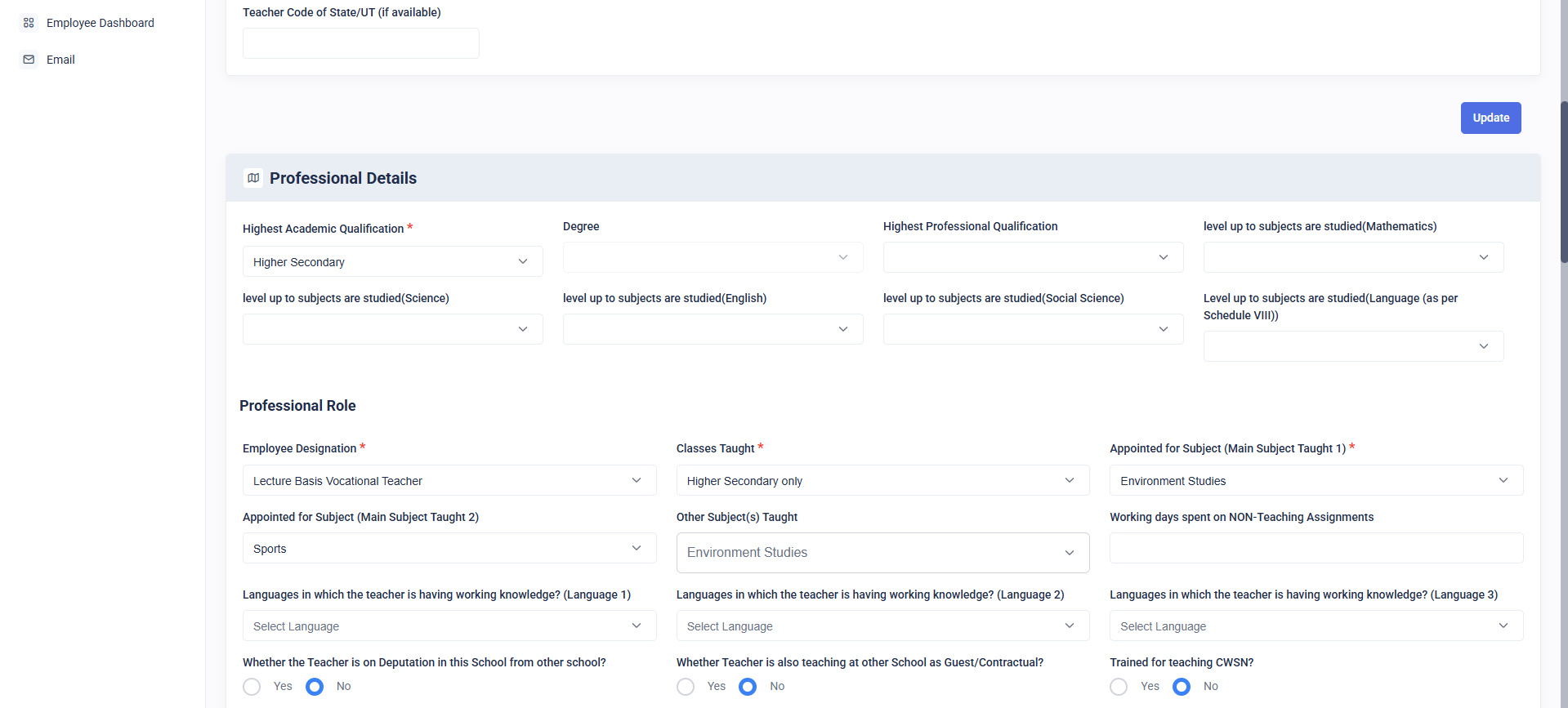
4. Profile Management
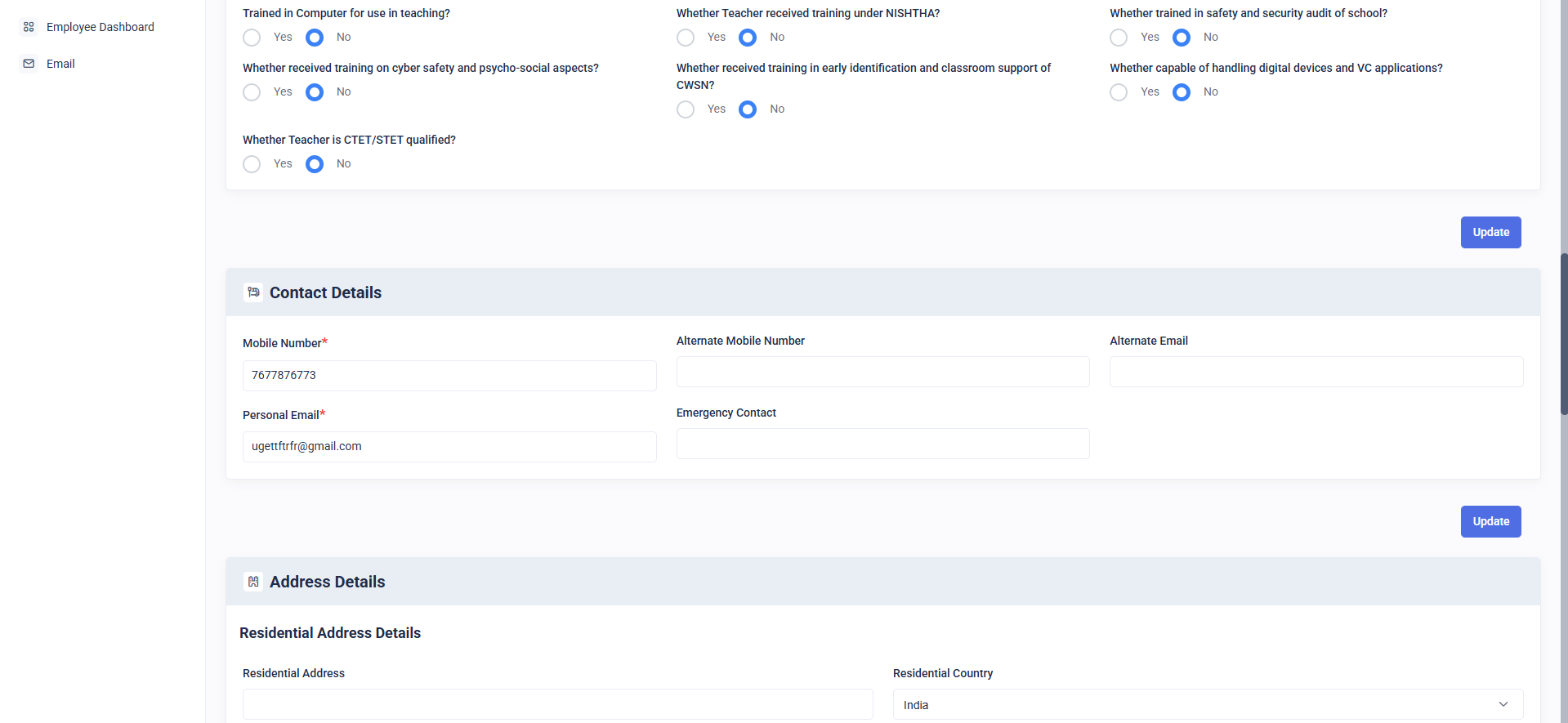
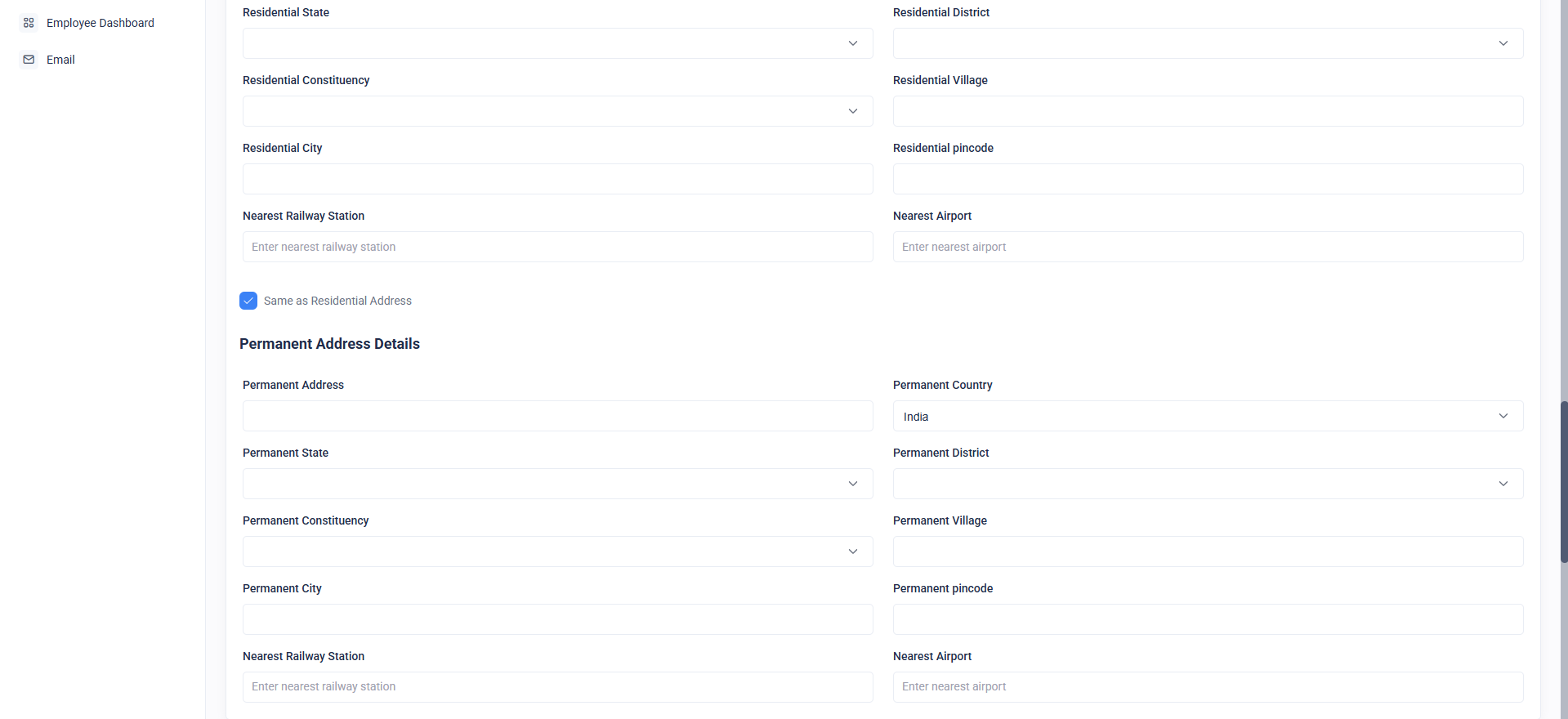
The Profile section contains all details an employee or school admin submitted during registration.
4.1 View Profile Details
Employees can view their:
- Profile Information
- Professional Information
- Contact Information
- Address Information
- Documents & Files
4.2 Edit Profile Details
-
Click on the Edit Profile button available on the Employee Details page.
-
Update the required information.
-
Click Save to store the changes.
Note: When updating profile credentials—used for login—please proceed with extra caution. The system will ask for confirmation to ensure account security.

5. iCommunicate Module
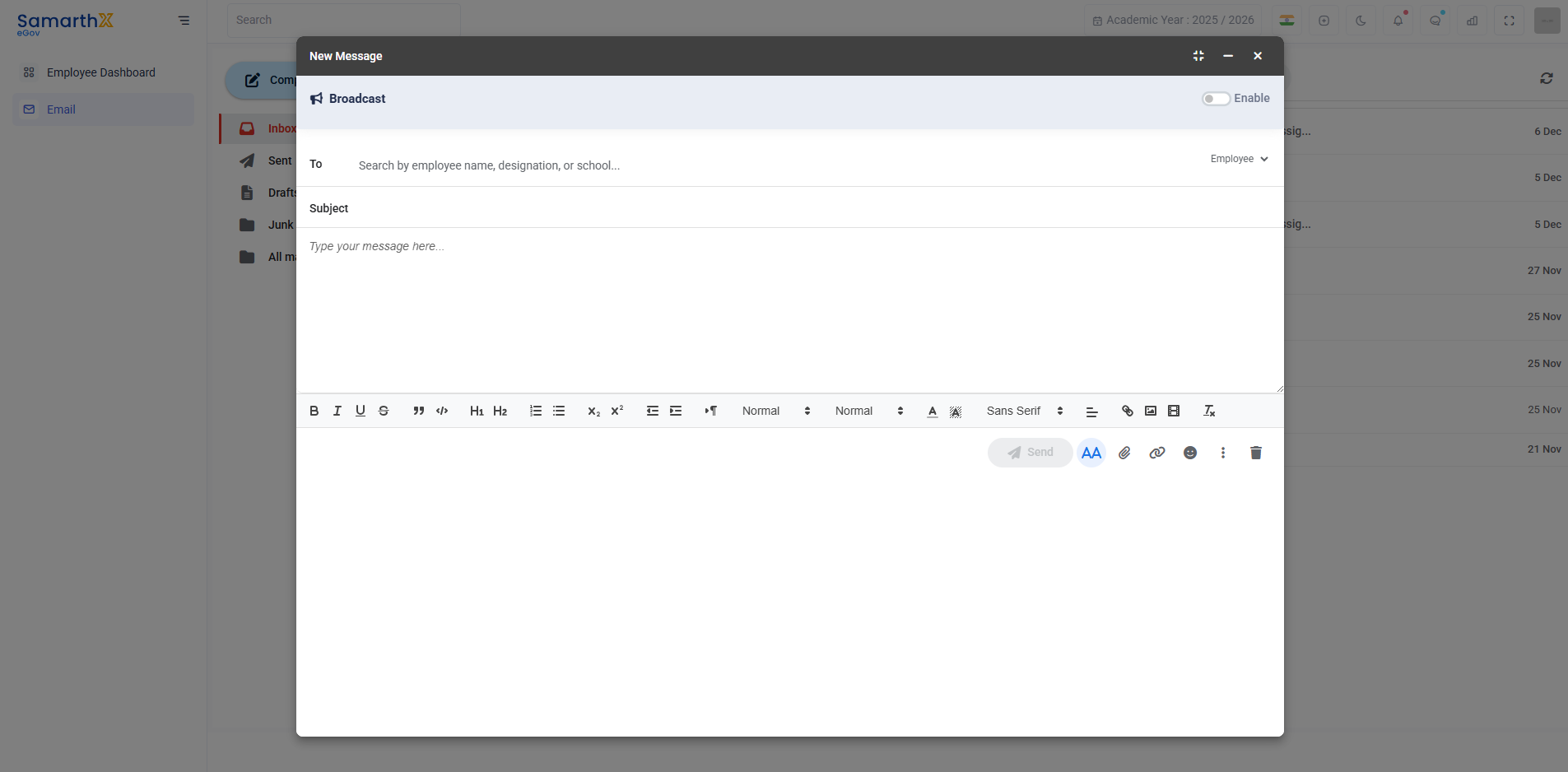
The iCommunicate feature allows employees to communicate within the system.
5.1 Communication Options
Employees can use this module to communicate with:
-
Other Employees
-
School Admin
-
Directorate of Higher Education (DHE)
5.2 Available Functions
-
Send messages
-
View received messages
6. Support and Assistance
If any issues arise during login, profile update, or communication:
-
Contact your School Administrator
7. Conclusion
This user guide covers the basics of using the employee login system, managing profile details, and using the communication module.