Employee Permissions Management – User Guide
Overview
The School Admin can manage what actions each employee is allowed to perform within the Employee Management module.
Permissions ensure that employees only access the features necessary for their responsibilities.
How to Access and Assign Employee Permissions
Follow the steps below to assign permissions to any employee:
Step 1: Go to Employee List
-
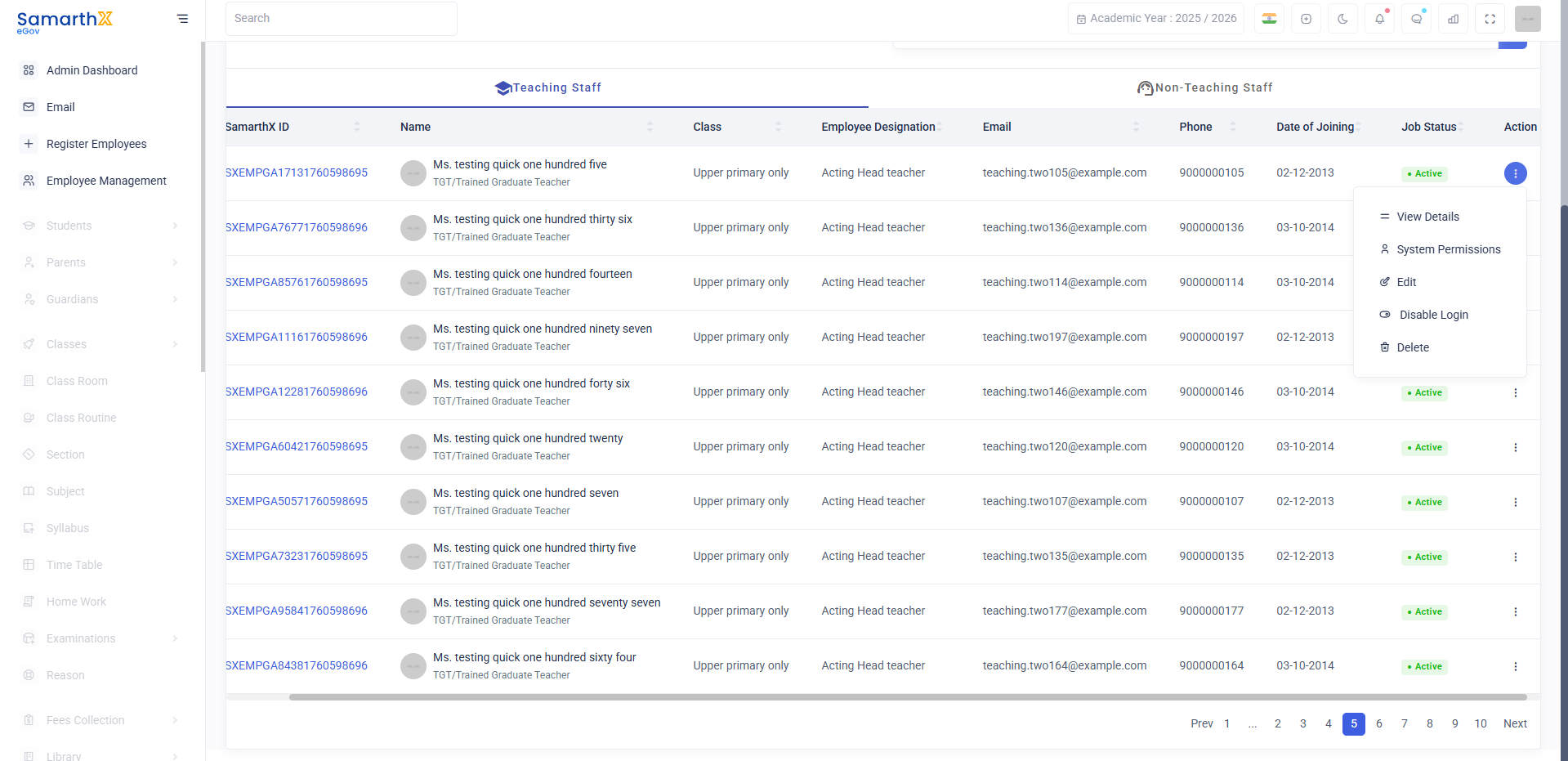
From the left sidebar menu, click Employee Management.
-
Select Teaching Staff or Non-Teaching Staff based on the employee category.
-
You will see the full Employee List with employee details.
Step 2: Open System Permissions
-
On the right side of each employee row, click the three-dots menu (⋮) under the Action column.
-
A dropdown menu will appear.
-
Click System Permissions.
This will open the Permission Management screen for that specific employee.
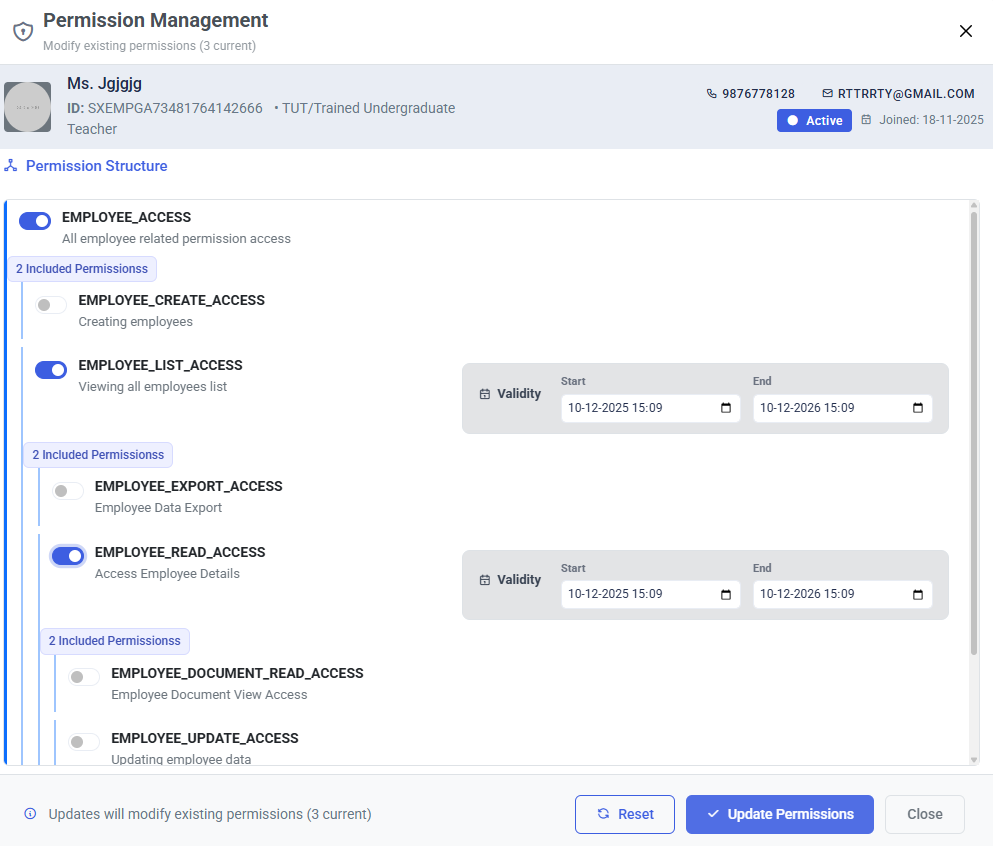
Permission Management Screen Explained
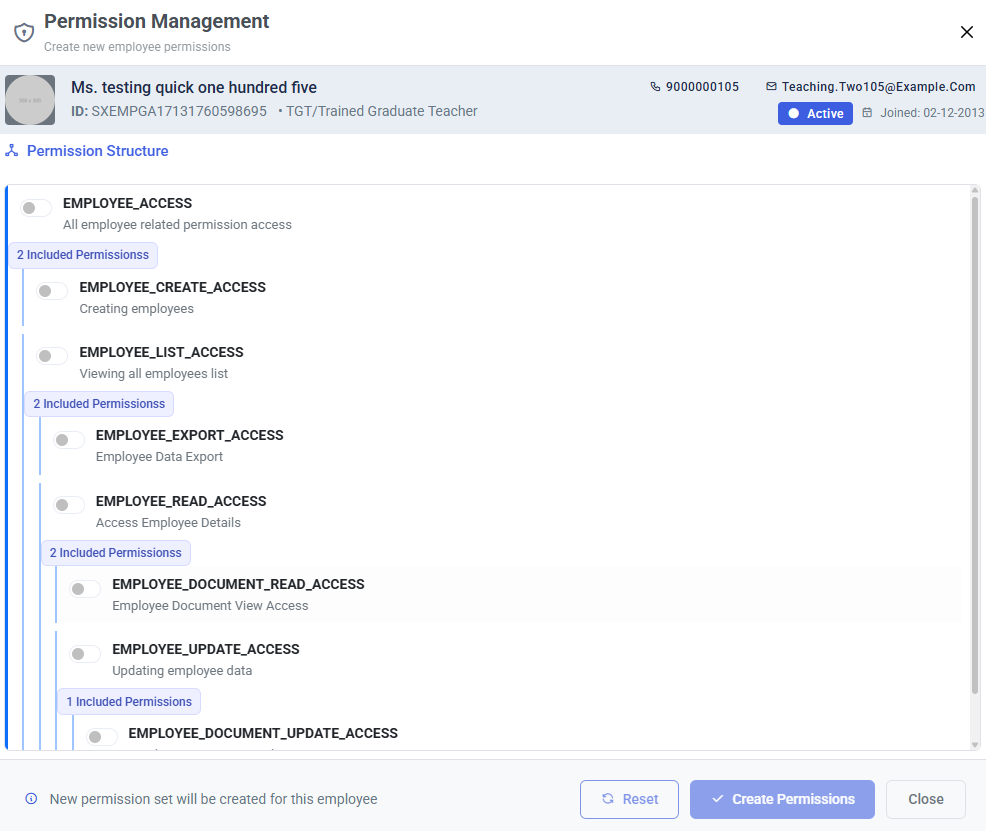
Inside the Permission Management window, the School Admin can:
-
Assign or remove permissions using toggle switches
-
View which permissions are linked together
-
Create or update permission sets
Parent–Child Permission Structure
The permission structure is hierarchical.
Some permissions are Child Permissions, and enabling them automatically enables related Parent Permissions.
How Parent–Child Behavior Works
-
Switching ON a child permission automatically enables its parent permissions.
Example:
Turning ONEMPLOYEE_EXPORT_ACCESSorEMPLOYEE_READ_ACCESSwill automatically includeEMPLOYEE_LIST_ACCESS. -
Turning OFF a parent permission will disable all its child permissions.
-
Parent permissions can also be individually toggled, giving full control to the School Admin.
This structure prevents mistakes and ensures that dependent permissions stay consistent.
All permissions:
• EMPLOYEE_CREATE_ACCESS
Allows the user to create new employees in the system.
• EMPLOYEE_LIST_ACCESS
Allows the user to view the list of all employees.
• EMPLOYEE_EXPORT_ACCESS
Allows exporting employee data to Excel or other formats.
• EMPLOYEE_READ_ACCESS
Allows the user to view complete details of each employee.
• EMPLOYEE_DOCUMENT_READ_ACCESS
Allows viewing employee documents such as certificates, ID proofs, etc.
• EMPLOYEE_UPDATE_ACCESS
Allows editing or updating employee data.
• EMPLOYEE_DOCUMENT_UPDATE_ACCESS
Allows uploading, updating, or replacing documents for an employee.
Assigning Permission Validity
-
Toggle ON the permission.
-
The Validity box appears automatically.
-
Select the Start date & time.
-
Select the End date & time.
-
Continue enabling other permissions if needed.
Final Step: Save Permissions
Once the School Admin selects the necessary permissions:
-
Click
CreateUpdate Permissions. -
The changes will be applied to the selected employee.