Employee Registration User Guide
This guide explains how to register new employees—either individually or in bulk—through the SamarthX School Dashboard.
1. Accessing the Employee Management Module
-
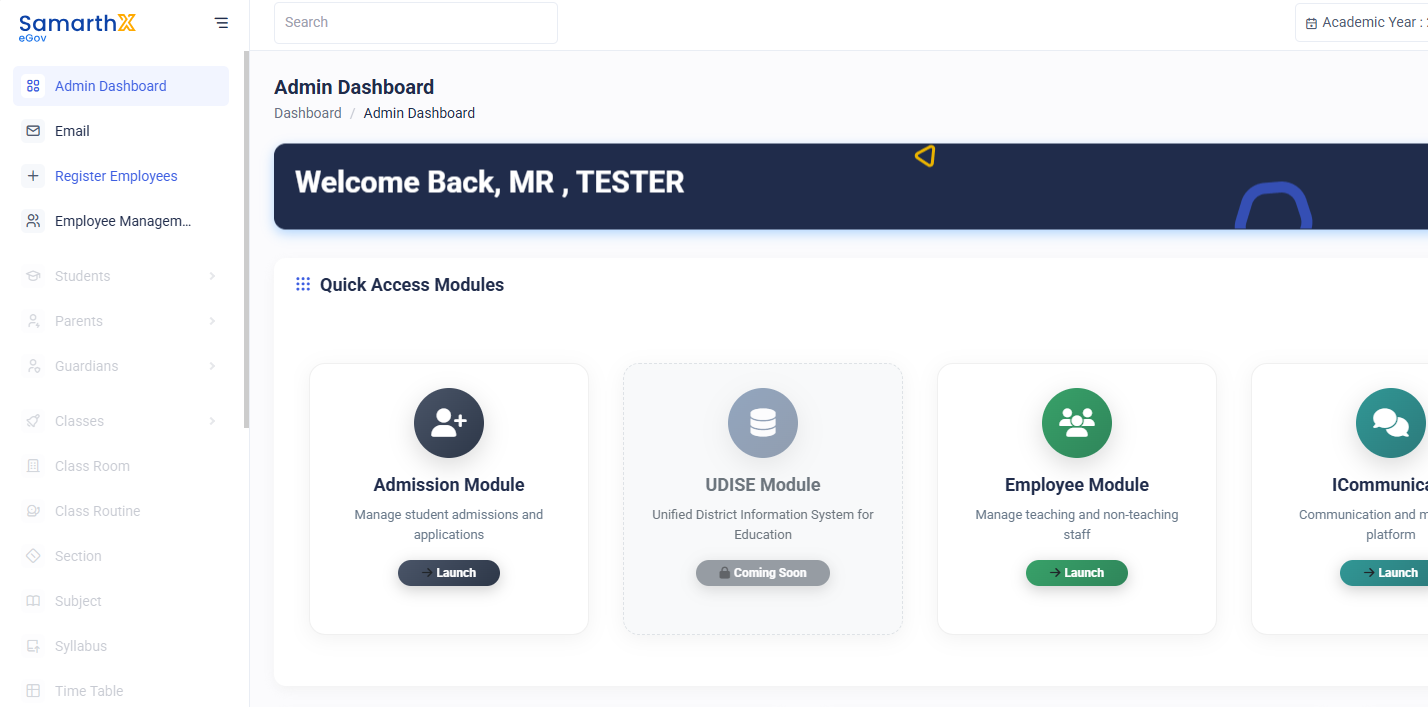
Log in to the School Dashboard.
-
From the sidebar, click Employee Management.
-
Alternatively, access it from the Modules section on the dashboard.
-
-
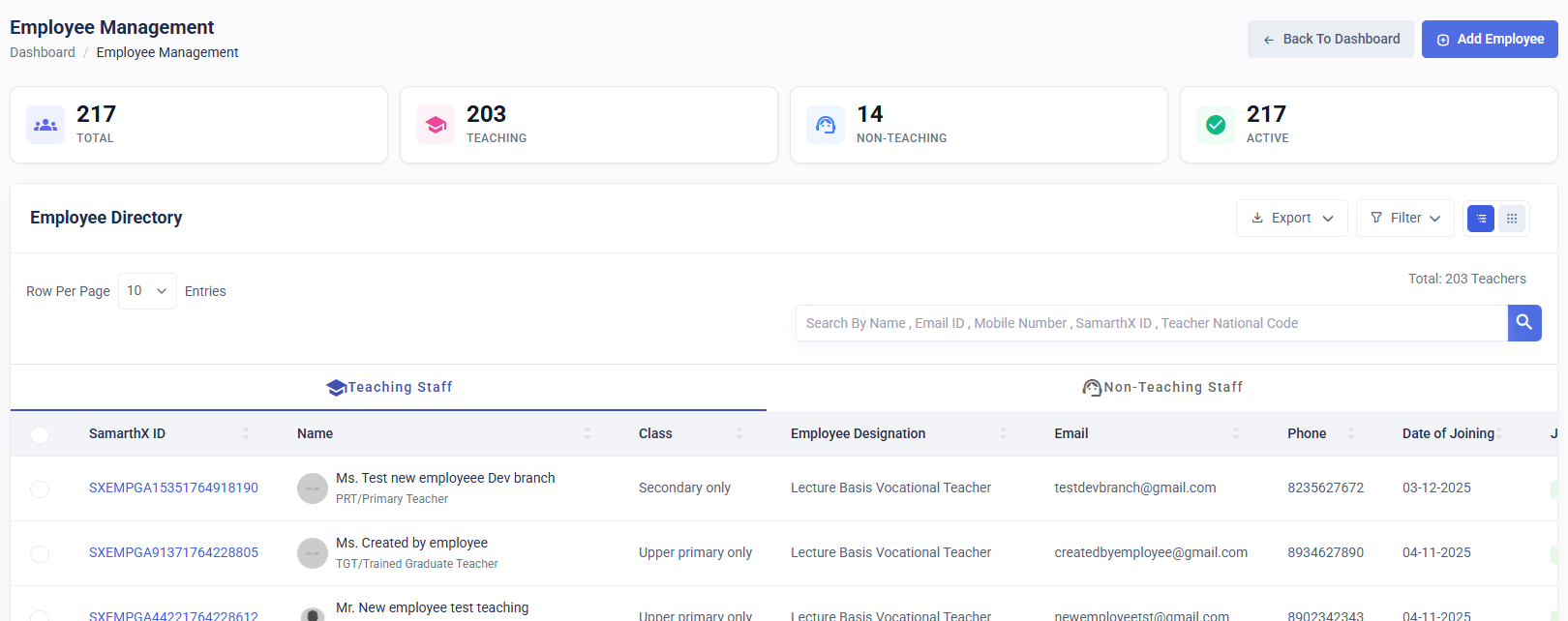
You will be redirected to the Employee Directory page, where all existing employees of the school are listed.
2. Opening the Employee Registration Page
-
On the Employee Directory page, click the Add Employee button located at the top-right corner.
-
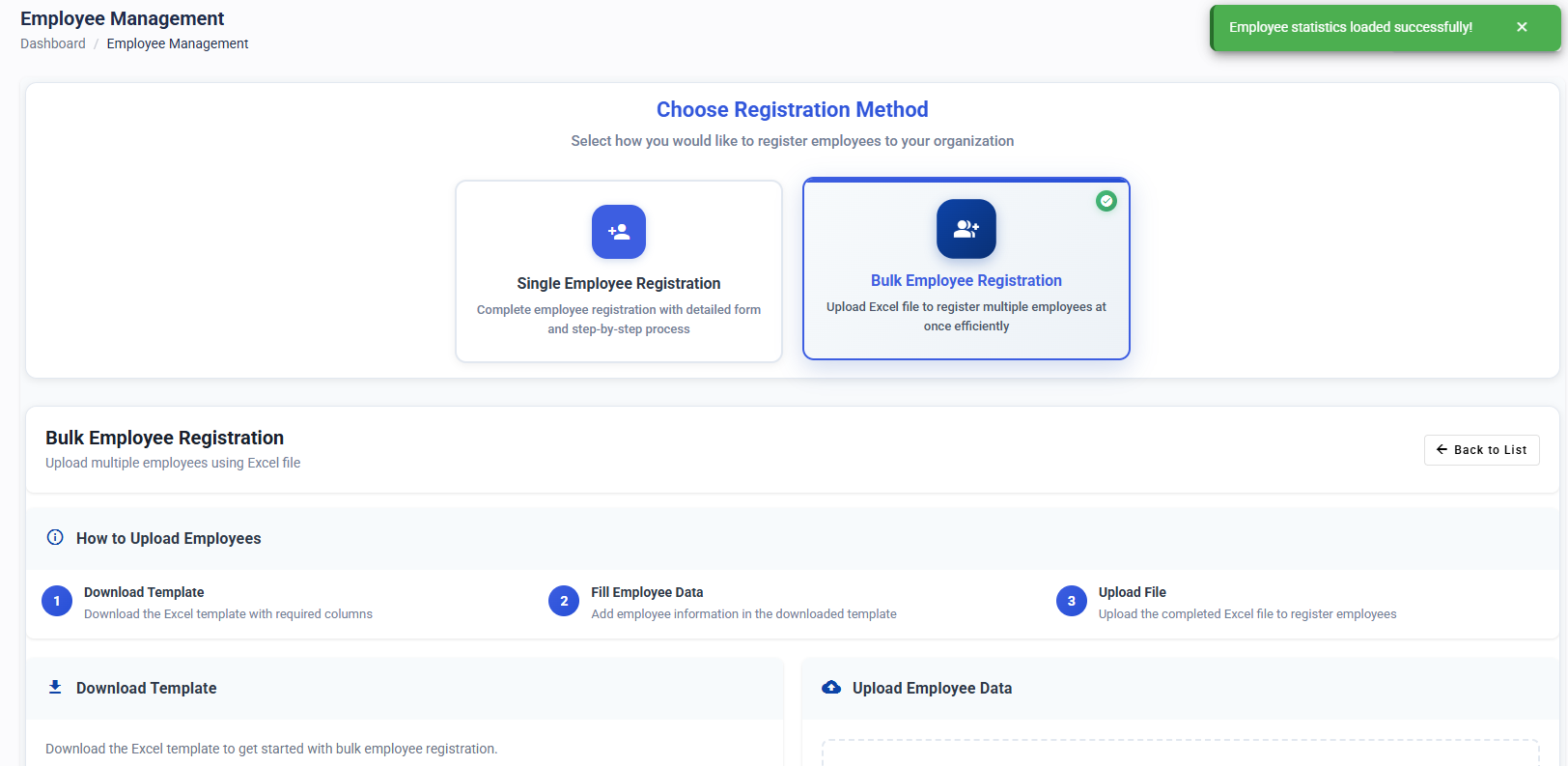
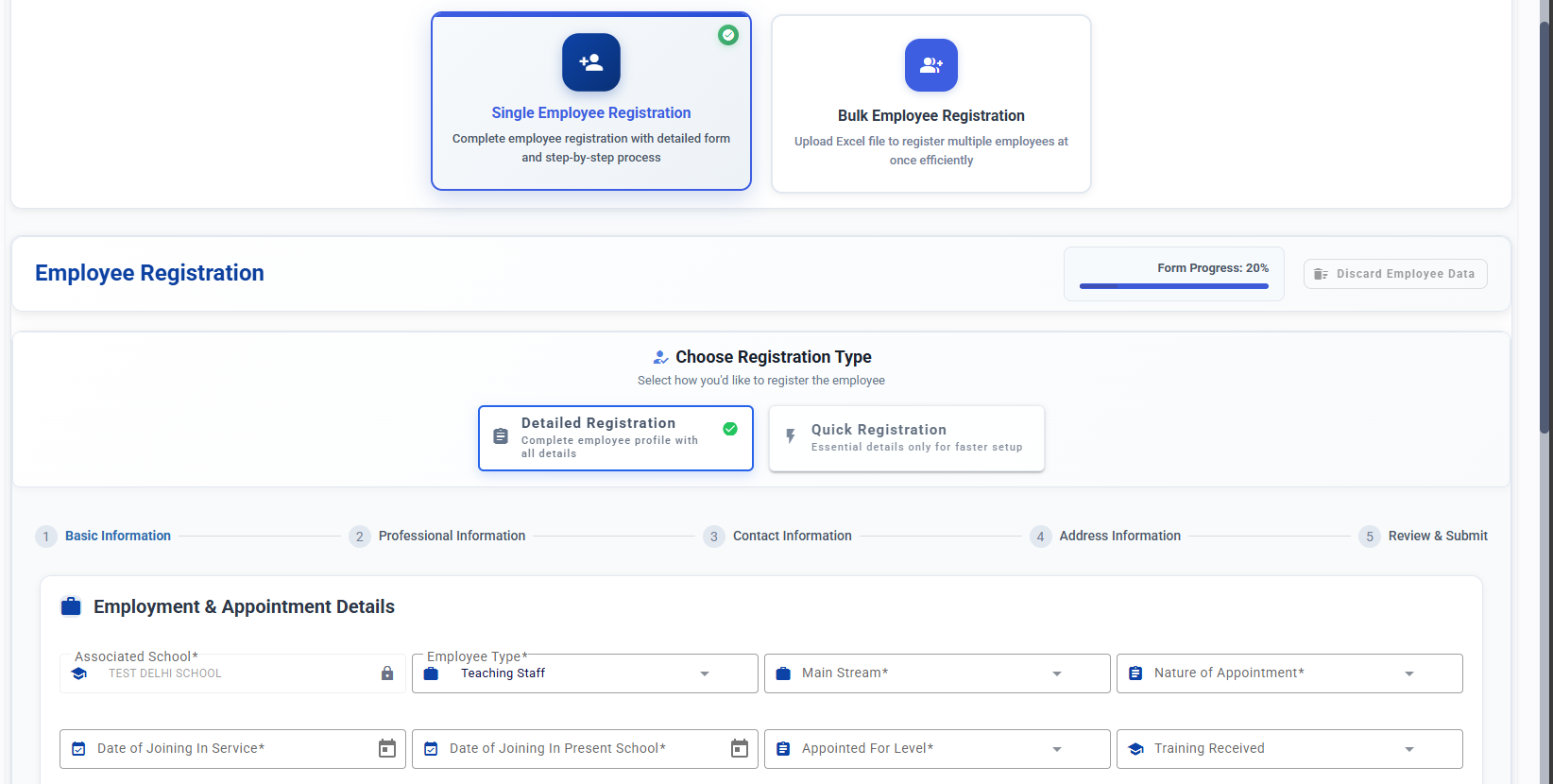
You will see two registration options:
-
Single Employee Registration
-
Bulk Employee Registration
-
Choose the method based on your requirement.
3. Bulk Employee Registration
Use this method when you want to register multiple employees at once.
3.1 Download the Registration Template
-
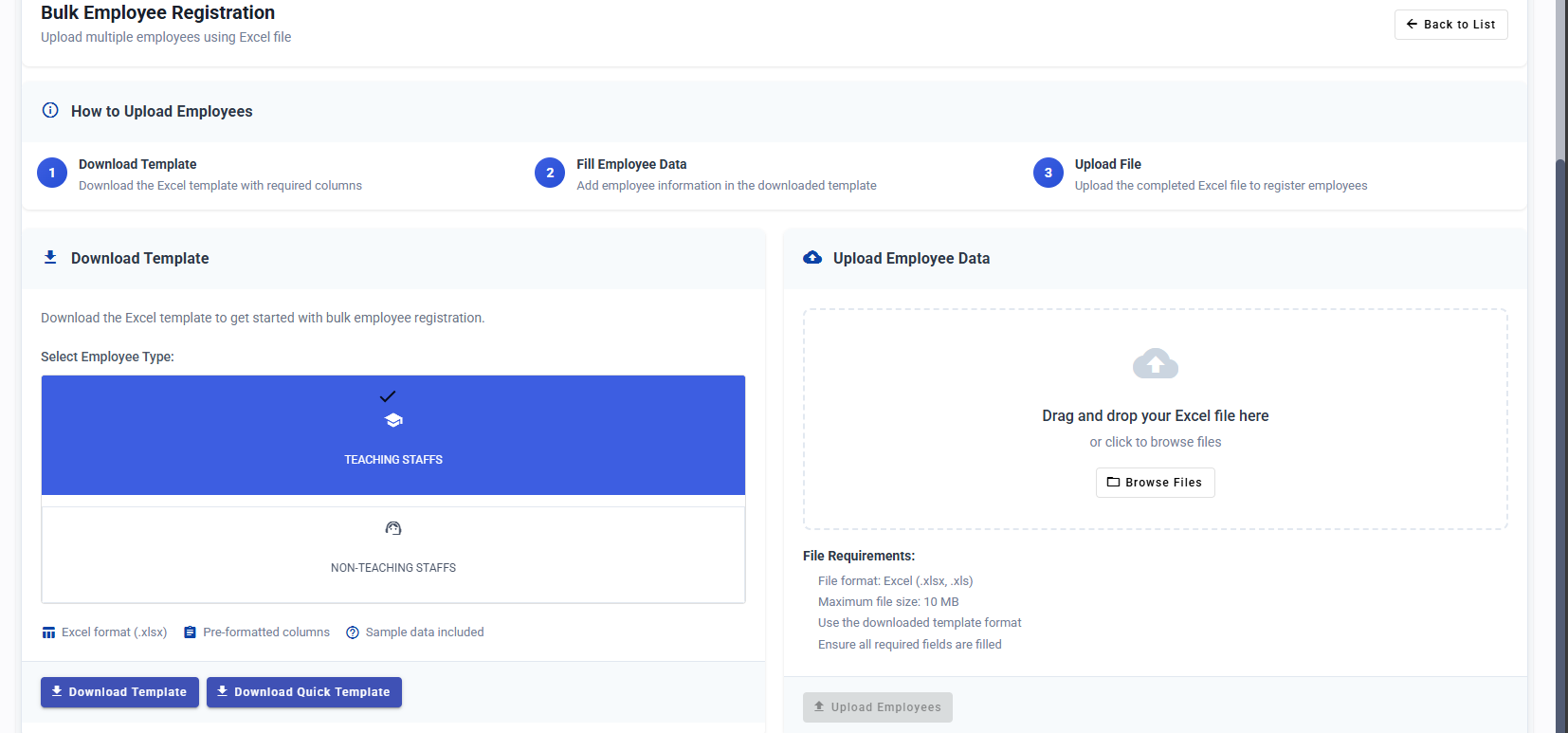
Scroll down to the Bulk Registration section.
-
Select the Employee Type:
-
Teaching Staff
-
Non-Teaching Staff
-
-
Based on your preference, download one of the available templates:
-
Quick Template – Contains only mandatory fields
-
Detailed Template – Includes all fields for comprehensive data entry
-
3.2 Fill the Template
-
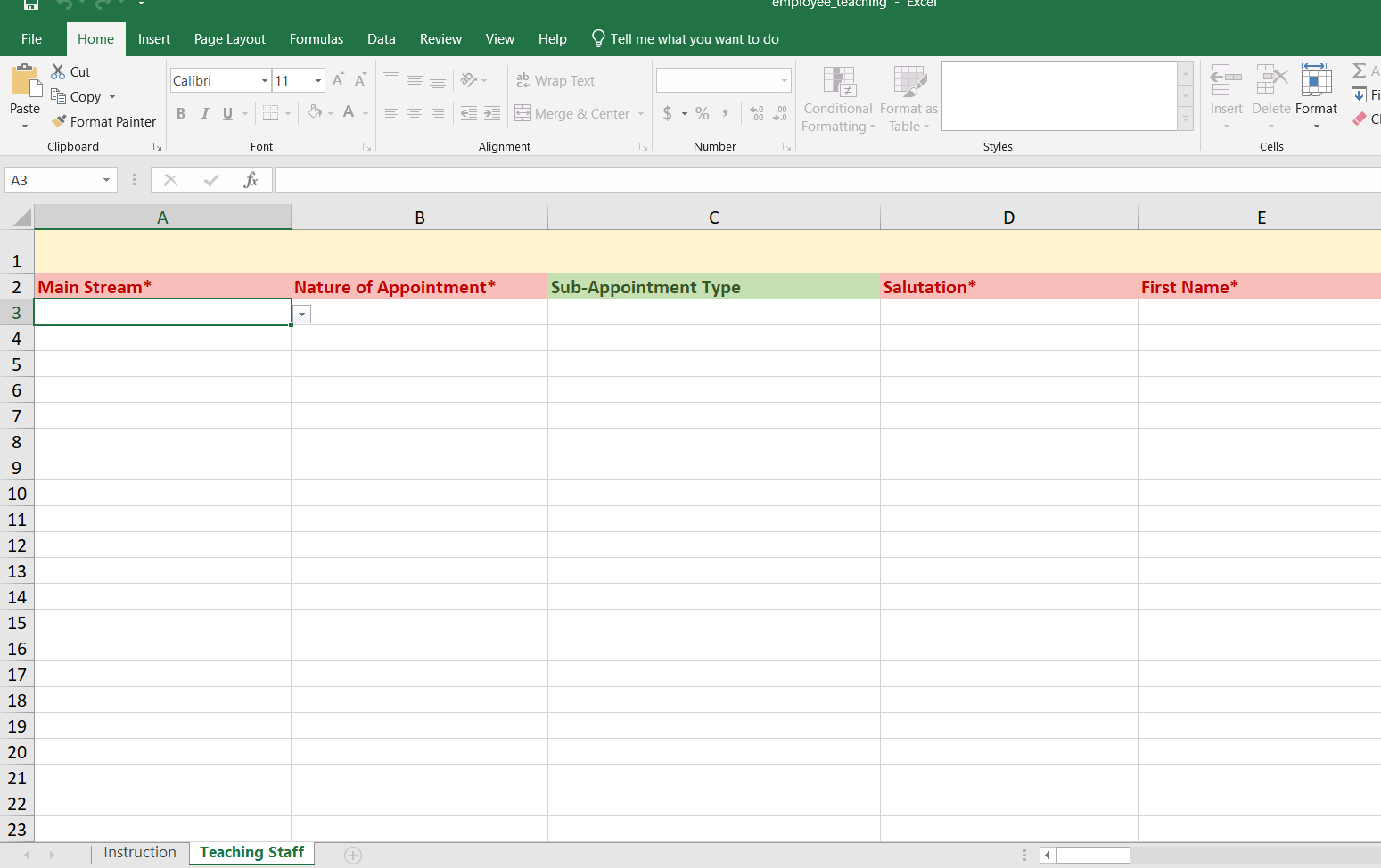
Open the downloaded Excel file.
-
Enter the required details for each employee you want to onboard.
-
Ensure all mandatory fields are filled.
-
Save the file after completing the entries.
3.3 Upload and Submit
-
Go back to the registration page.
-
Upload the completed file by dragging and dropping it into the Upload Section on the right side.
-
The system will process the file and create employee records.
3.4 Verify Registration
-
After upload, click Back to List.
-
Check the Employee Directory to confirm that all employees have been successfully registered.
4. Single Employee Registration
Use this option to register one employee at a time.
4.1 Choose the Form Type
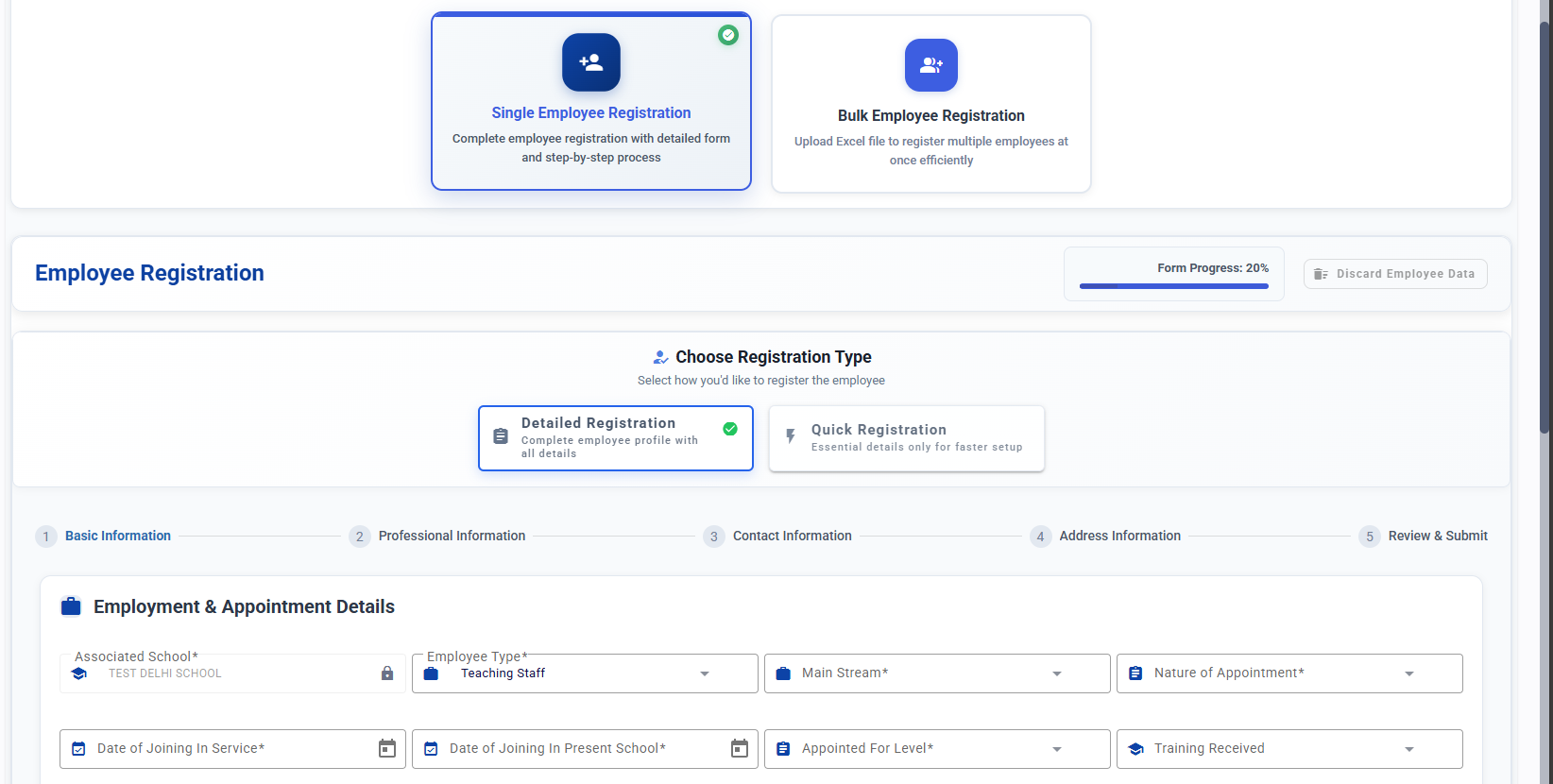
You can choose between:
-
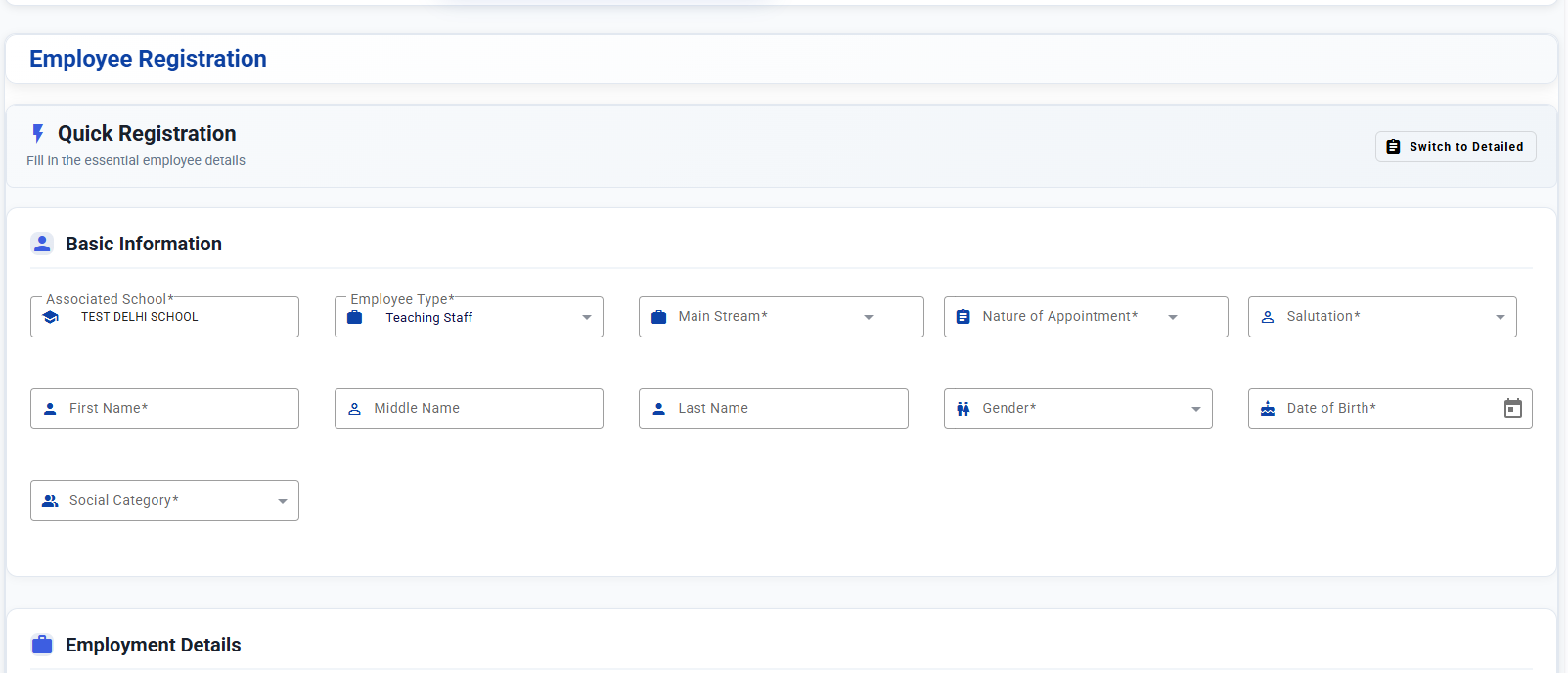
Quick Form – Contains only essential fields
-
Detailed Form – Includes all fields across four sections:
-
Basic Information
-
Professional Information
-
Contact Information
-
Address Information
-
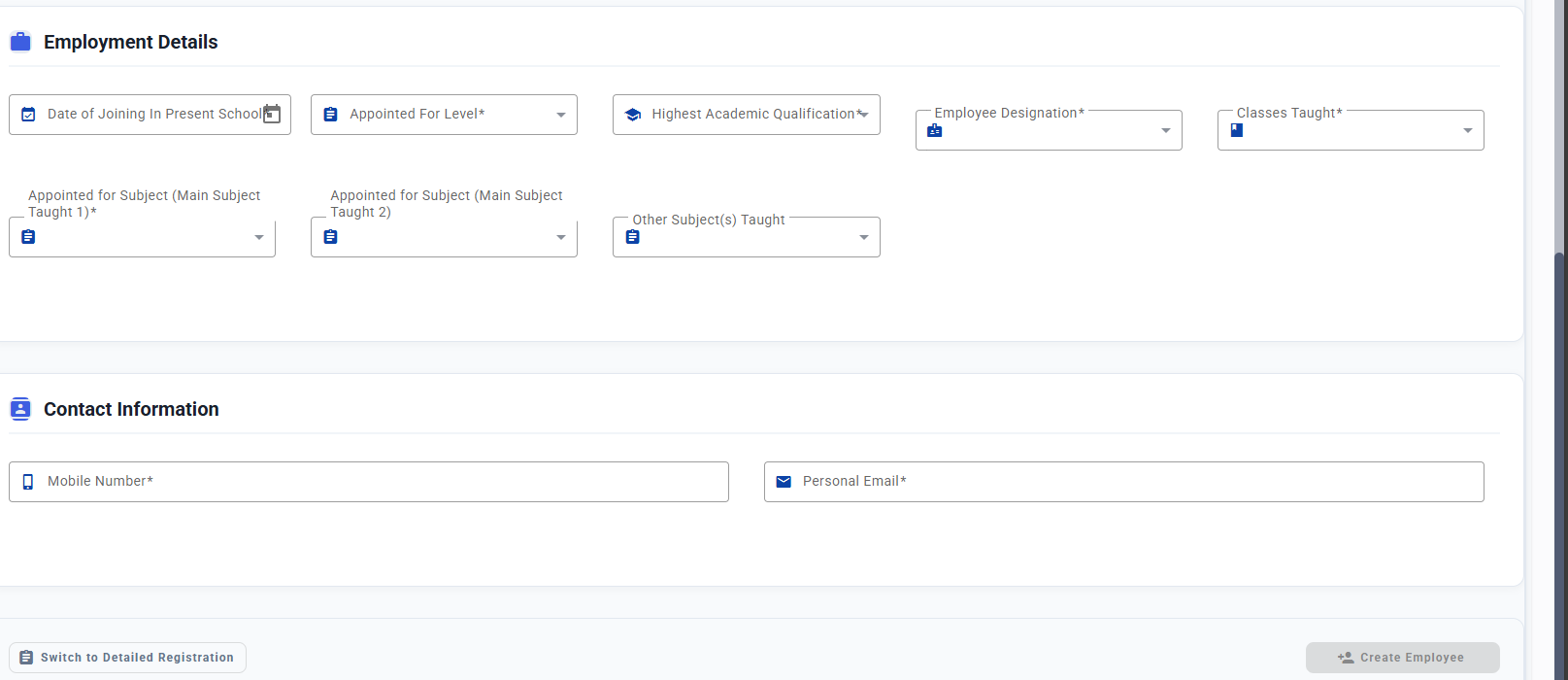
4.2 Fill and Submit
-
Select the preferred form type.
-
Enter the required employee details.
-
Submit the form to complete the registration.
If you