
Leave Management – User Guide
Leave Management Dashboard
Overview
The Leave Management module provides a centralized platform for managing leave types, leave requests, approval workflows, leave calendars, and leave-related configurations.
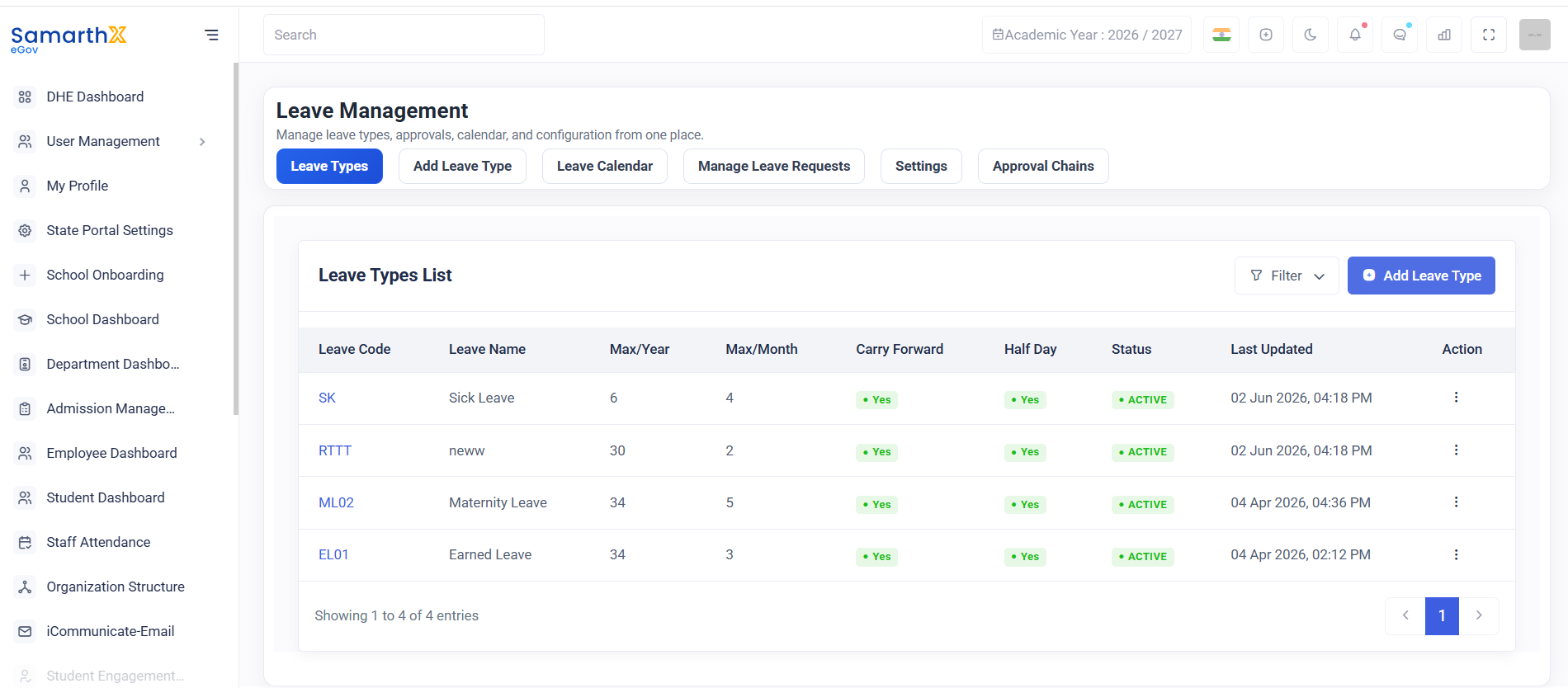
Navigation
Dashboard → Leave Management
Available Sections
| Section | Description |
|---|---|
| Leave Types | Configure and manage leave categories |
| Add Leave Type | Create new leave types |
| Leave Calendar | View leave schedules and holidays |
| Manage Leave Requests | Review and process leave applications |
| Settings | Configure leave policies and rules |
| Approval Chains | Define leave approval workflows |
Leave Types
The Leave Types section displays all configured leave categories and their settings.
Available Information
| Field | Description |
|---|---|
| Leave Code | Unique identifier for the leave type |
| Leave Name | Name of the leave category |
| Max/Year | Maximum leave days allowed per year |
| Max/Month | Maximum leave days allowed per month |
| Carry Forward | Indicates whether unused leave can be carried forward |
| Half Day | Indicates whether half-day leave is permitted |
| Status | Current leave type status |
| Last Updated | Date and time of last modification |
| Action | Available management actions |
Sample Leave Types
| Leave Code | Leave Name | Max/Year | Max/Month | Carry Forward | Half Day | Status |
|---|---|---|---|---|---|---|
| SK | Sick Leave | 6 | 4 | Yes | Yes | Active |
| RTTT | New Leave Type | 30 | 2 | Yes | Yes | Active |
| ML02 | Maternity Leave | 34 | 5 | Yes | Yes | Active |
| EL01 | Earned Leave | 34 | 3 | Yes | Yes | Active |
Add Leave Type
Allows administrators to create a new leave category.
Typical Configuration
Leave CodeLeave NameMaximum Leave per YearMaximum Leave per MonthCarry Forward OptionHalf-Day EligibilityStatus
Steps
ClickAdd Leave Type.Enter leave details.Configure leave rules.Save the record.
Leave Calendar
The Leave Calendar provides a consolidated view of:
- Approved Leaves
- Public Holidays
- School Holidays
- Leave Schedules
Benefits
- Prevents leave
conflicts.conflicts - Improves workforce
planning.planning - Provides visibility into staff
availability.
Manage Leave Requests
Used to review and process employee leave applications.
Functions
View leave requestsApprove requestsReject requestsTrack leave statusReview leave history
Approval Chains
Approval Chains define the leave approval workflow.
Features
Multi-level approvalsDesignation-based approvalsDepartment-wise approval hierarchyEscalation workflow support
Settings
The Settings section allows administrators to configure:
Leave policiesLeave eligibility criteriaLeave accrual rulesCarry-forward limitsApproval requirementsavailability
User Actions
Create a Leave Type
- Open Leave Types.
- Click Add Leave Type.
- Enter required details.
- Save the configuration.
Review Leave Requests
- Open Manage Leave Requests.
- Select a leave request.
- Approve or reject the request.
- Save the action.
Configure Approval Workflow
- Open Approval Chains.
- Define approval levels.
- Assign approvers.
- Save the workflow.
Leave Management Workflow
Employee Submits Leave Request
            ↓
Manager Reviews Request
            ↓
Approval Chain Processing
            ↓
Approved / Rejected
            ↓
Leave Calendar Updated
            ↓
Leave Balance Updated
Security and Access Control
- Leave configurations can be modified only by authorized administrators.
- Leave requests are accessible according to user roles.
- Approval actions are recorded for audit purposes.
Troubleshooting
Purpose
The Leave Management module streamlines leave administration by providing tools for leave configuration, request processing, approval management, and attendance planning within a single interface.
Add Leave Type
Overview
The Add Leave Type page allows administrators to create and configure leave categories that can be assigned to employees. The configuration includes leave eligibility, duration limits, approval settings, accrual rules, and restrictions.
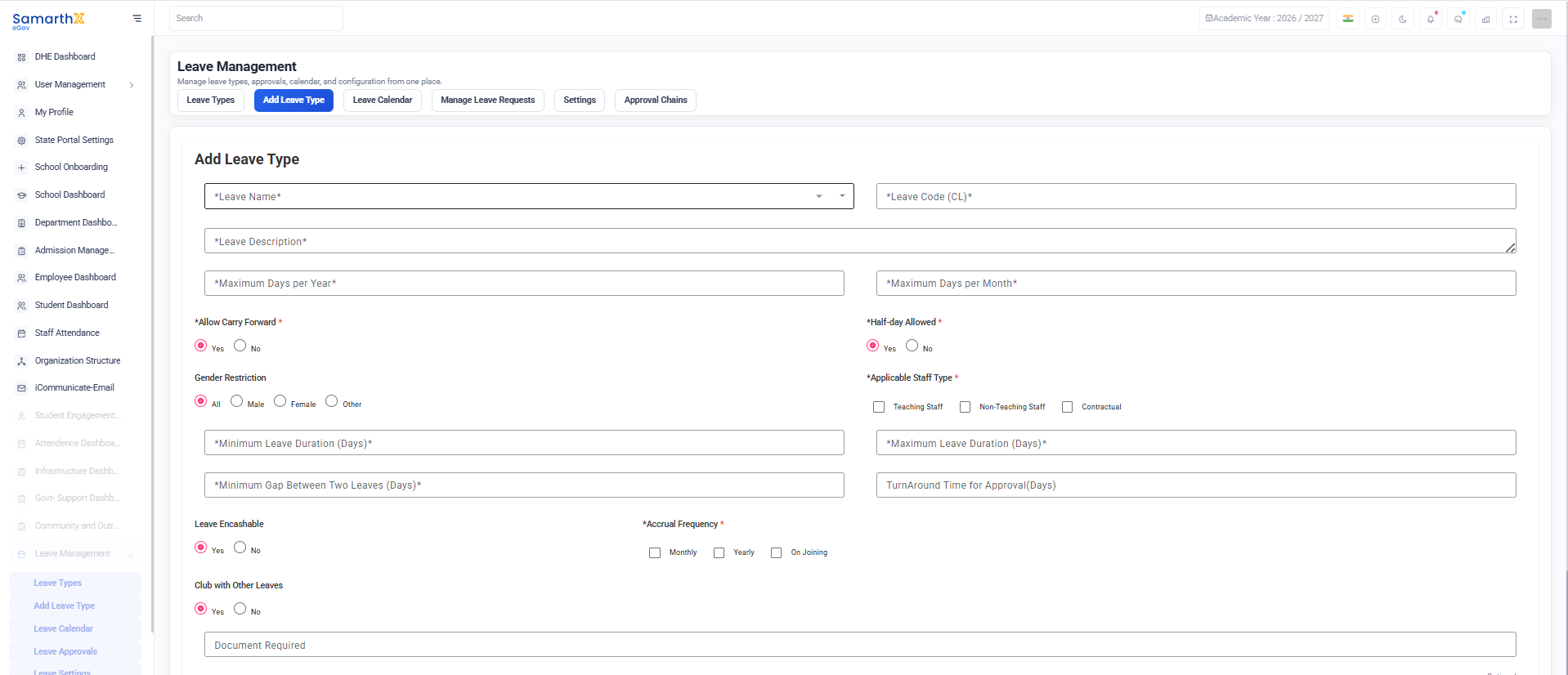
Navigation
Dashboard → Leave Management → Add Leave Type
Leave Type Configuration
Basic Information
Leave Limits
Carry Forward Configuration
Allow Carry Forward*
Determines whether unused leave balance can be carried forward to the next period.
Options:
YesNo
Half-Day Configuration
Half-day Allowed*
Determines whether employees can apply for half-day leave.
Options:
YesNo
Gender Restriction
Defines employee eligibility based on gender.
Options:
AllMaleFemaleOther
Applicable Staff Type
Select the employee categories eligible for this leave type.
Available Options:
Teaching StaffNon-Teaching StaffContractual Staff
Multiple staff types can be selected.
Approval Configuration
Leave Encashment
Leave Encashable
Determines whether unused leave can be converted into monetary benefits.
Options:
YesNo
Leave Accrual Settings
Accrual Frequency*
Defines how leave balance is credited.
Options:
Leave Clubbing
Club with Other Leaves
Determines whether this leave type can be combined with other leave categories.
Options:
YesNo
Document Requirement
Specify any supporting documents required when applying for this leave type.
Examples:
Medical CertificateMaternity DocumentsOfficial Approval Letter
This field is optional.
Leave Status
Defines the current availability of the leave type.
Options:
ActiveInactive
User Actions
Create a Leave Type
OpenAdd Leave Type.Enter Leave Name and Leave Code.Provide Leave Description.Configure leave limits and eligibility.Select approval and accrual settings.Set Leave Status.ClickSave.
Validation Rules
Leave Type Creation Workflow
Open Add Leave Type
          ↓
Enter Basic Details
          ↓
Configure Leave Limits
          ↓
Set Eligibility Rules
          ↓
Configure Approval & Accrual Settings
          ↓
Set Leave Status
          ↓
Save Leave Type
          ↓
Leave Type Available for Use
Security and Access Control
Purpose
The Add Leave Type page enables administrators to define organizational leave policies and create leave categories with configurable rules, restrictions, and approval requirements.
Leave Calendar
Overview
The Leave Calendar provides a consolidated view of employee leave requests, holidays, and weekends. It helps administrators and managers monitor staff availability and plan workforce schedules effectively.
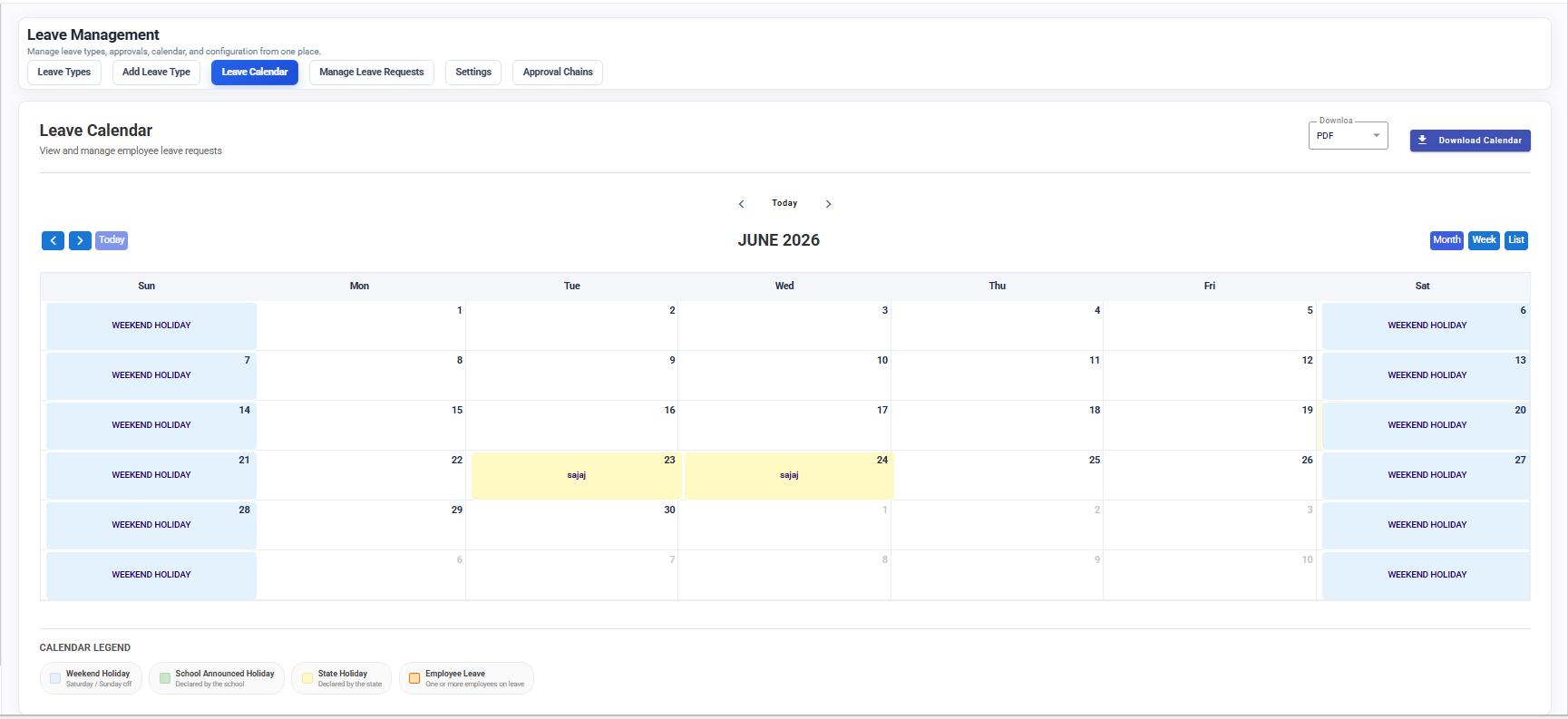
Navigation
Dashboard → Leave Management → Leave Calendar
Purpose
The Leave Calendar enables users to:
View employee leave schedulesMonitor approved leave requestsTrack holidays and weekendsIdentify staff availabilityPlan workforce allocation
Calendar Controls
Month Selection
Example:
June 2026
Export Options
The calendar can be downloaded for reporting purposes.
Available Formats:
PDF
Calendar View
The calendar displays daily information for the selected month.
Information Displayed
Employee Leave Display
When employees are on leave, their names are displayed on the corresponding calendar date.
Example
Calendar Legend
Weekend Holiday
Saturday and Sunday holidaysAutomatically highlighted in the calendar
School Announced Holiday
Holidays declared by the school administrationVisible to all users
State Holiday
Public holidays declared by the state governmentApplied across relevant institutions
Employee Leave
Displays employees who have approved leave on a specific dateHelps identify staff availability
User Actions
View Leave Schedule
OpenLeave Calendar.Select the required month.Review leave entries and holidays.
Export Calendar
ClickDownload Format.SelectPDF.Download the calendar report.
Check Employee Availability
Leave Calendar Workflow
Leave Request Submitted
           ↓
Leave Approved
           ↓
Calendar Updated
           ↓
Employee Leave Displayed
           ↓
Reports & Planning
Benefits
Improved workforce planningCentralized leave visibilityHoliday trackingResource availability managementBetter scheduling decisions
Security and Access Control
Leave data is displayed based on user permissions.Only authorized users can manage leave records.Calendar information is maintained for reporting and audit purposes.
Troubleshooting
Purpose
The Leave Calendar serves as a centralized scheduling tool that provides visibility into employee leave, holidays, and workforce availability across the organization.
Manage Leave Requests
Overview
The Manage Leave Requests page allows administrators and approvers to view, review, approve, reject, and track employee leave applications. Requests are organized into different categories based on their status.
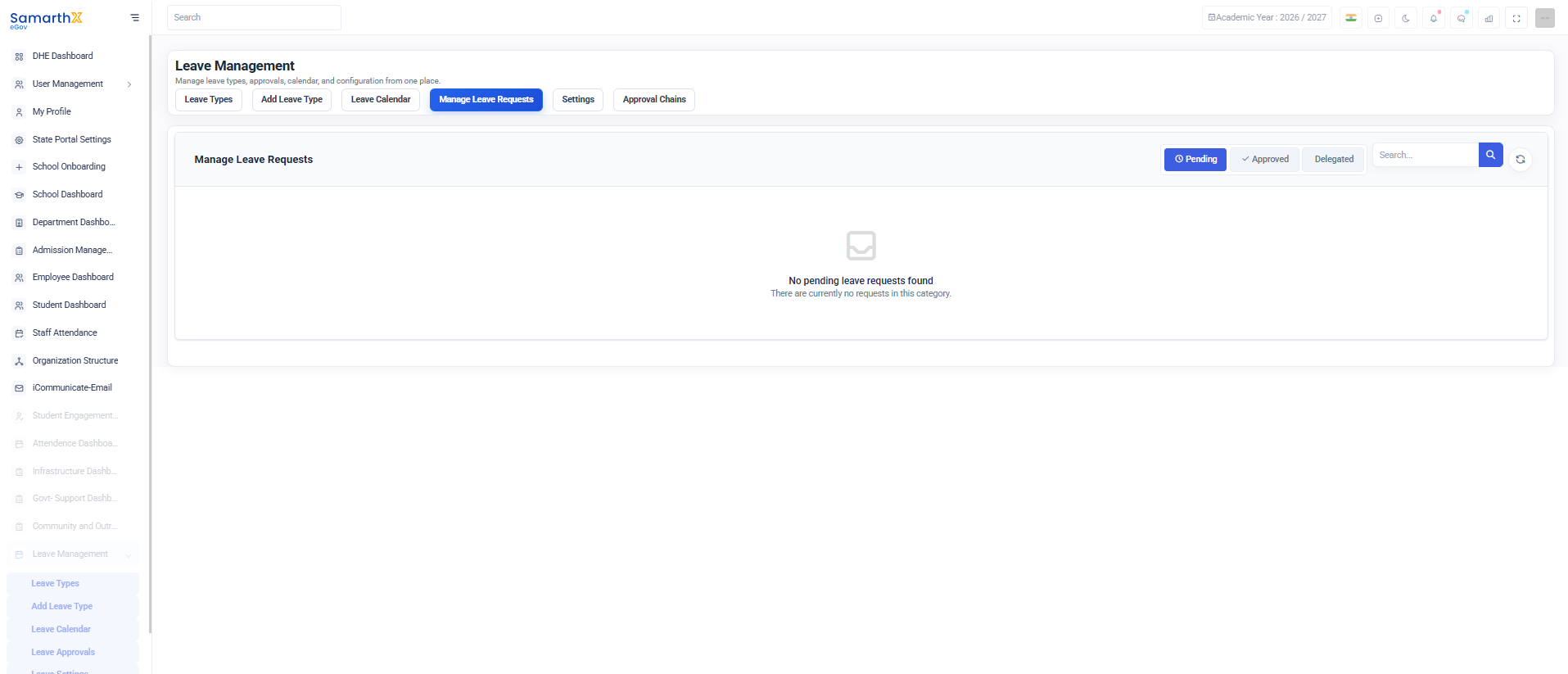
Purpose
This module helps organizations:
Monitor employee leave requestsApprove or reject leave applicationsTrack leave request statusManage delegated approvalsMaintain leave records
Leave Calendar Settings
Overview
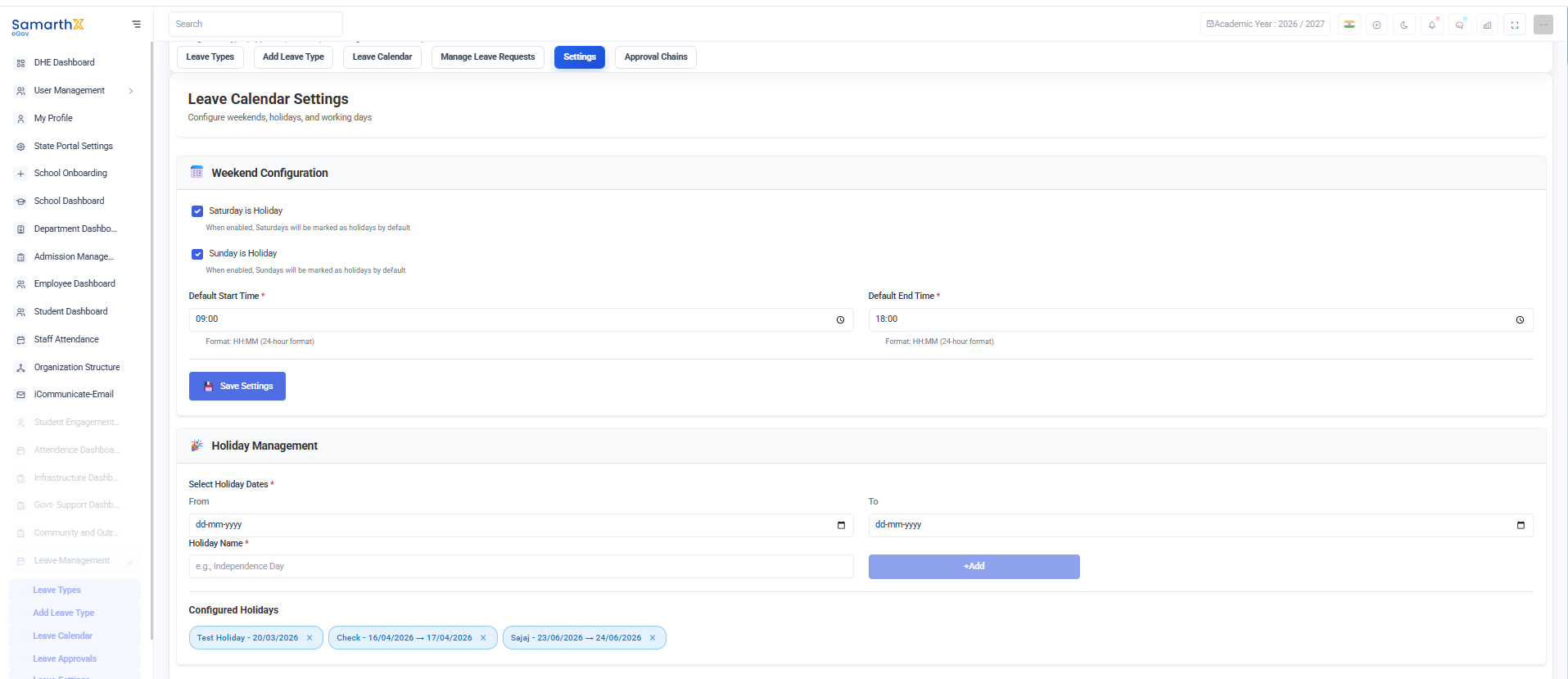
The Leave Calendar Settings page allows administrators to configure working days, weekends, office timings, and organization-wide holidays. These settings are used to calculate leave schedules and display holidays in the Leave Calendar.
Navigation
Dashboard → Leave Management → Settings → Leave Calendar Settings
Purpose
This module enables administrators to:
Configure weekend holidaysDefine default working hoursManage public and organizational holidaysMaintain an accurate leave calendar
Weekend Configuration
The Weekend Configuration section allows administrators to define weekly holidays.
Saturday is Holiday
When enabled:
Saturdays are automatically marked as holidays.Employees are not expected to work on Saturdays.
Sunday is Holiday
When enabled:
Sundays are automatically marked as holidays.Sundays appear as non-working days in the calendar.
Working Hours Configuration
Default Start Time
Defines the standard office start time.
Example:
09:00
Format: HH:MM (24-hour format)
Default End Time
Defines the standard office end time.
Example:
18:00
Format: HH:MM (24-hour format)
Holiday Management
The Holiday Management section allows administrators to add and maintain holiday records.
Holiday Configuration Fields
Examples
Configured Holidays
Displays all configured holidays available in the system.
Example Holidays
Available Actions
Add HolidayView Holiday DetailsRemove Holiday
User Actions
Configure Weekend Holidays
Update Working Hours
Enter the Default Start Time.Enter the Default End Time.Save the configuration.
Add a Holiday
Select theFrom Date.Select theTo Date.Enter the Holiday Name.Save the holiday.
Remove a Holiday
Locate the holiday inConfigured Holidays.Click theRemove (×)option.Confirm deletion.
Holiday Configuration Workflow
Open Leave Calendar Settings
            ↓
Configure Weekends
            ↓
Set Working Hours
            ↓
Add Holiday Details
            ↓
Save Configuration
            ↓
Calendar Updated
Validation Rules
Security and Access Control
Troubleshooting
Purpose
The Leave Calendar Settings page provides centralized control over weekends, working hours, and holidays, ensuring accurate leave calculations and calendar management across the organization.
Approval Chain Configuration – User Guide
Overview
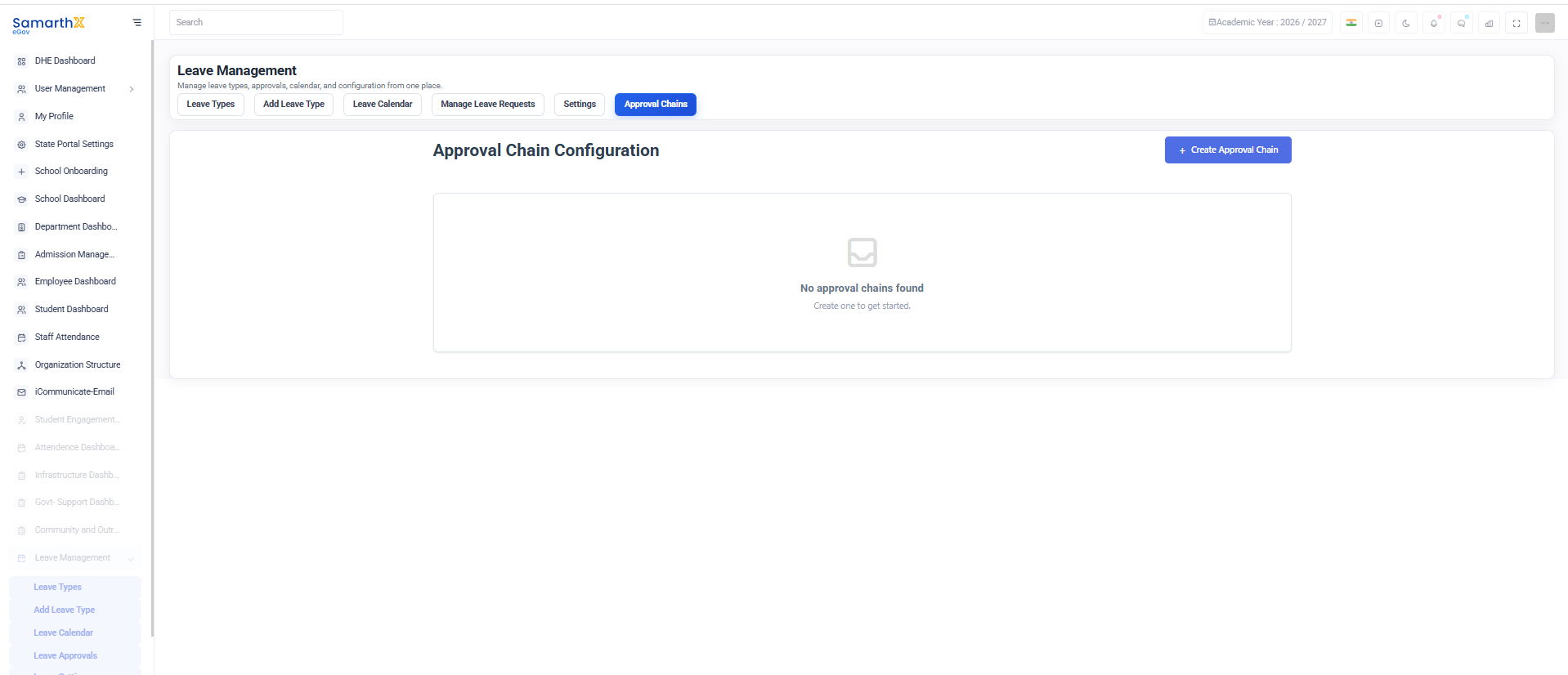
The Approval Chain Configuration page allows administrators to define and manage approval workflows for leave requests. Approval chains determine the sequence of approvers responsible for reviewing and approving employee leave applications.
Navigation
Dashboard → Leave Management → Approval Chains
Purpose
The Approval Chain module helps organizations:
Establish leave approval hierarchiesDefine multi-level approval workflowsAssign approvers based on roles or designationsEnsure compliance with organizational leave policiesStreamline leave approval processes
Approval Chain Configuration
Approval chains are used to determine who must approve a leave request before it is finalized.
Features
Single-level approvalsMulti-level approvalsRole-based approversDesignation-based approval workflowsDepartment-specific approval chains