
School Management – User Guide
Overview
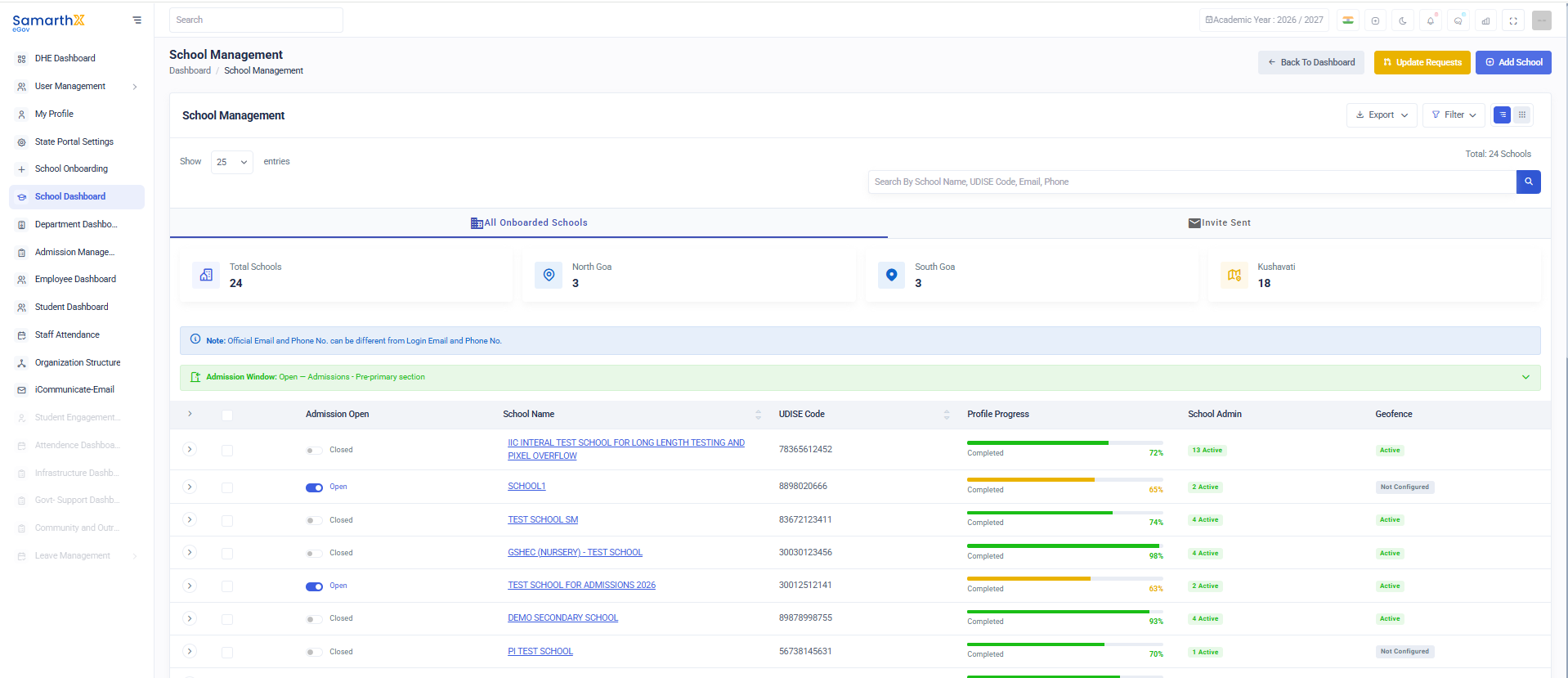
The School Management module provides administrators with a centralized interface to manage onboarded schools, monitor profile completion status, track admissions, manage school administrators, and review geofence configurations.
Navigation
Dashboard → School Management
Purpose
The School Management module enables administrators to:
- View all onboarded schools
- Monitor school onboarding progress
- Track admission status
- Manage school administrator accounts
- Review geofence configurations
- Search and filter school records
Search Schools
Use the search box to locate schools using:
- School Name
- UDISE Code
- Email Address
- Phone Number
Search Placeholder
Search By School Name, UDISE Code, Email, Phone
School Categories
| Category | Description |
|---|---|
| All Onboarded Schools | Displays all registered schools |
| Invite Sent | Displays schools with pending onboarding invitations |
School Information
Each school record displays the following details:
| Field | Description |
|---|---|
| Admission Window | Admission status (Open/Closed) |
| School Name | Name of the institution |
| UDISE Code / Contact Number | School identifier |
| Profile Progress | School profile completion percentage |
| School Admin | Active administrator accounts |
| Geofence Status | Attendance location configuration status |
Admission Status
Open
Indicates that admissions are currently active.
Closed
Indicates that admissions are currently unavailable.
Profile Progress Status
Displays the onboarding progress of each school.
Examples
- Basic Info
- Location Contact
- Completed
Progress percentage indicates profile completion status.
School Administrator Status
Displays the number of active administrators assigned to the school.
Geofence Status
Displays attendance location configuration status.
| Status | Description |
|---|---|
| Active | Geofence configured successfully |
| Not Configured | Geofence setup pending |
User Actions
View School Details
Search a School
- Enter a school name, UDISE code, email, or phone number.
- Review filtered results.
Monitor Profile Completion
- Review the Profile Progress column.
- Identify schools with incomplete onboarding.
- Follow up for profile completion.
Verify Geofence Configuration
- Review the Geofence column.
- Identify schools with pending configuration.
- Initiate setup if required.
School Management Workflow
School Registration
          ↓
School Onboarding
          ↓
Profile Completion
          ↓
Admin Assignment
          ↓
Geofence Configuration
          ↓
Admissions Management
Notes
Official Email and Phone Number may differ from Login Email and Phone Number.
Admission status can be managed independently for each school.
Security and Access Control
- School information is visible only to authorized users.
- Administrative actions are controlled through role-based permissions.
- School onboarding records are maintained for auditing purposes.
Purpose
The School Management module serves as the central repository for managing schools, monitoring onboarding progress, tracking admissions, and maintaining administrative and geofence configurations across the education system.
School Invitation Management
Overview
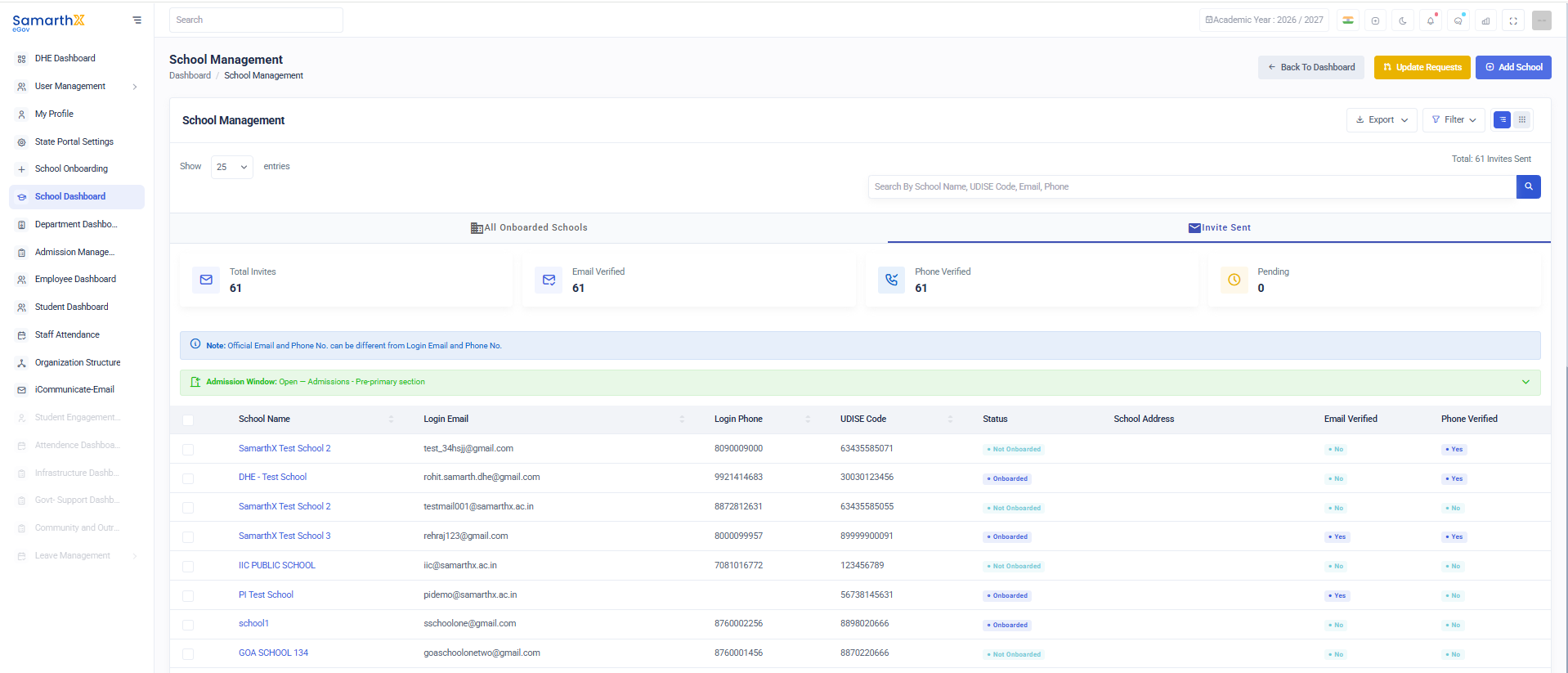
The School Invitation Management page allows administrators to track and manage invitations sent to schools for onboarding onto the platform. It provides visibility into onboarding status, email and phone verification, and school registration progress.
Navigation
Dashboard → School Management → Invite Sent
Purpose
This module helps administrators:
- Monitor invited schools
- Track onboarding progress
- Verify email and phone registration status
- Manage school invitation records
- Identify schools pending onboarding
Onboarding Status
Onboarded
Indicates that the school has completed the onboarding process and can access the platform.
Not Onboarded
Indicates that the invitation has been sent but onboarding is not yet completed.
Verification Status
Email Verified
Shows whether the school's login email has been verified.
| Status | Description |
|---|---|
| Yes | Email verified successfully |
| No | Email verification pending |
Phone Verified
Shows whether the school's login phone number has been verified.
| Status | Description |
|---|---|
| Yes | Phone verified successfully |
| No | Phone verification pending |
User Actions
Search School Invitations
Verify Onboarding Status
- Locate the school record.
- Review the Status column.
- Identify schools requiring onboarding support.
Check Verification Status
- Review the Email Verified column.
- Review the Phone Verified column.
- Follow up on pending verifications.
Invitation Workflow
School Invitation Sent
          ↓
Email Verification
          ↓
Phone Verification
          ↓
School Registration
          ↓
School Onboarding
          ↓
Platform Access Granted
Notes
Official Email and Phone Number may differ from Login Email and Phone Number.
Schools must complete verification and onboarding before accessing platform services.
Security and Access Control
- School invitation records are visible only to authorized administrators.
- Verification status is maintained securely within the system.
- Onboarding activities are logged for audit purposes.
Purpose
The School Invitation Management page provides administrators with a centralized view of school invitations, verification status, and onboarding progress, ensuring smooth registration and activation of schools within the platform.