
Transfer Management – User Guide
Manual Transfer – User Guide
Overview
The Manual Transfer module enables authorized administrators to transfer employees from one school or organization to another by creating a transfer order and updating transfer-related information.
Navigation
Dashboard → Transfer Management → Manual Transfer

Purpose
The Manual Transfer module allows administrators to:
- Transfer employees between schools or organizations
- Record official transfer orders
- Define relieving and joining dates
- Upload supporting documents
- Maintain transfer history records
Transfer Information
Employee Selection
Select the employee to be transferred.
| Field | Description |
|---|---|
| Search Employee* | Search and select an employee from the school employee list |
Employee Search
Search school employees...
Target Organization
Select the destination school or organization.
| Field | Description |
|---|---|
| Target Organization* | School or institution where the employee will be transferred |
Search Target School
Search target school...
Transfer Order Details
Order Number
Unique reference number for the transfer order.
| Field | Description |
|---|---|
| Order Number* | Official transfer order number |
Example
Enter order number
Transfer Dates
Date of Order Issued
Date on which the transfer order was issued.
Date of Relieving
Date on which the employee is relieved from the current organization.
Date of Joining
Date on which the employee joins the new organization.
| Field | Format |
|---|---|
| Date of Order Issued | DD-MM-YYYY |
| Date of Relieving | DD-MM-YYYY |
| Date of Joining | DD-MM-YYYY |
Document Upload
Supporting documents related to the transfer can be uploaded.
Accepted File Formats
- PNG
- JPG
File Size Limit
- Maximum 100 KB per file
Upload Purpose
- Transfer Order
- Approval Letter
- Administrative Documents
- Supporting Attachments
Transfer Reason
Specify the reason for the transfer.
Additional Remarks
Administrators can add additional comments or instructions related to the transfer.
Examples
Any other important notes...
User Actions
Create a Manual Transfer
- Open Manual Transfer.
- Search and select the employee.
- Select the target organization.
- Enter the transfer order number.
- Specify transfer dates.
- Upload supporting documents (optional).
- Enter transfer reason.
- Add remarks if required.
- Submit the transfer request.
Transfer Workflow
Select Employee
        ↓
Select Target Organization
        ↓
Enter Transfer Details
        ↓
Upload Documents
        ↓
Submit Transfer Order
        ↓
Employee Relieved
        ↓
Employee Joins New Organization
Validation Rules
| Field | Validation |
|---|---|
| Employee | Mandatory |
| Target Organization | Mandatory |
| Order Number | Mandatory |
| Date of Order Issued | Mandatory |
| Date of Relieving | Mandatory |
| Date of Joining | Mandatory |
| Transfer Reason | Recommended |
| Documents | Optional |
Purpose
The Manual Transfer module provides a structured process for transferring employees between institutions while maintaining official records, transfer documentation, and employment continuity.
View Transfer Order
Click on view transfer order to check the number of orders transferred.
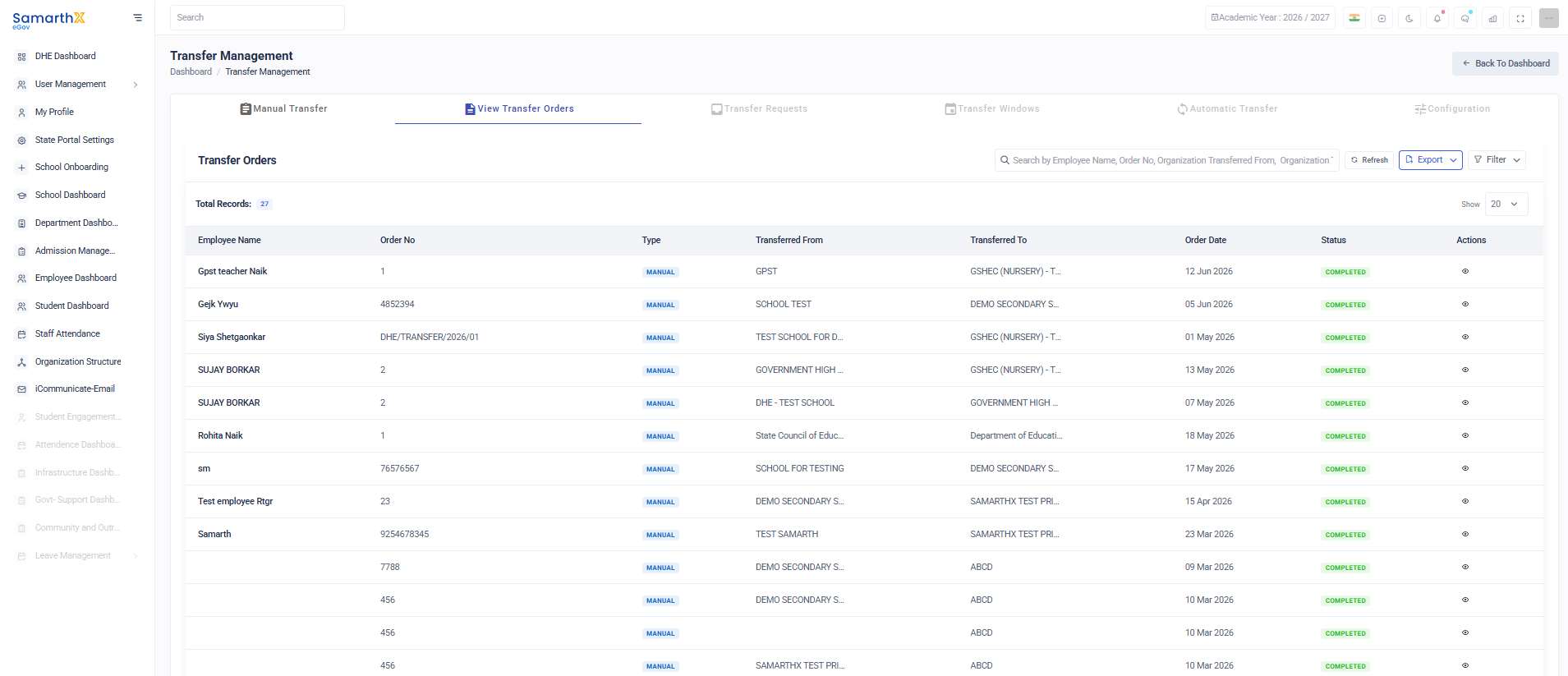
Search by: Employee Name, Order No, Organization Transferred From, Organization Transferred To