
# iCommunicate – User Guide
Overview
The iCommunicate Inbox module provides a centralized platform for managing internal communications. Users can compose, receive, search, and manage messages exchanged within the system.
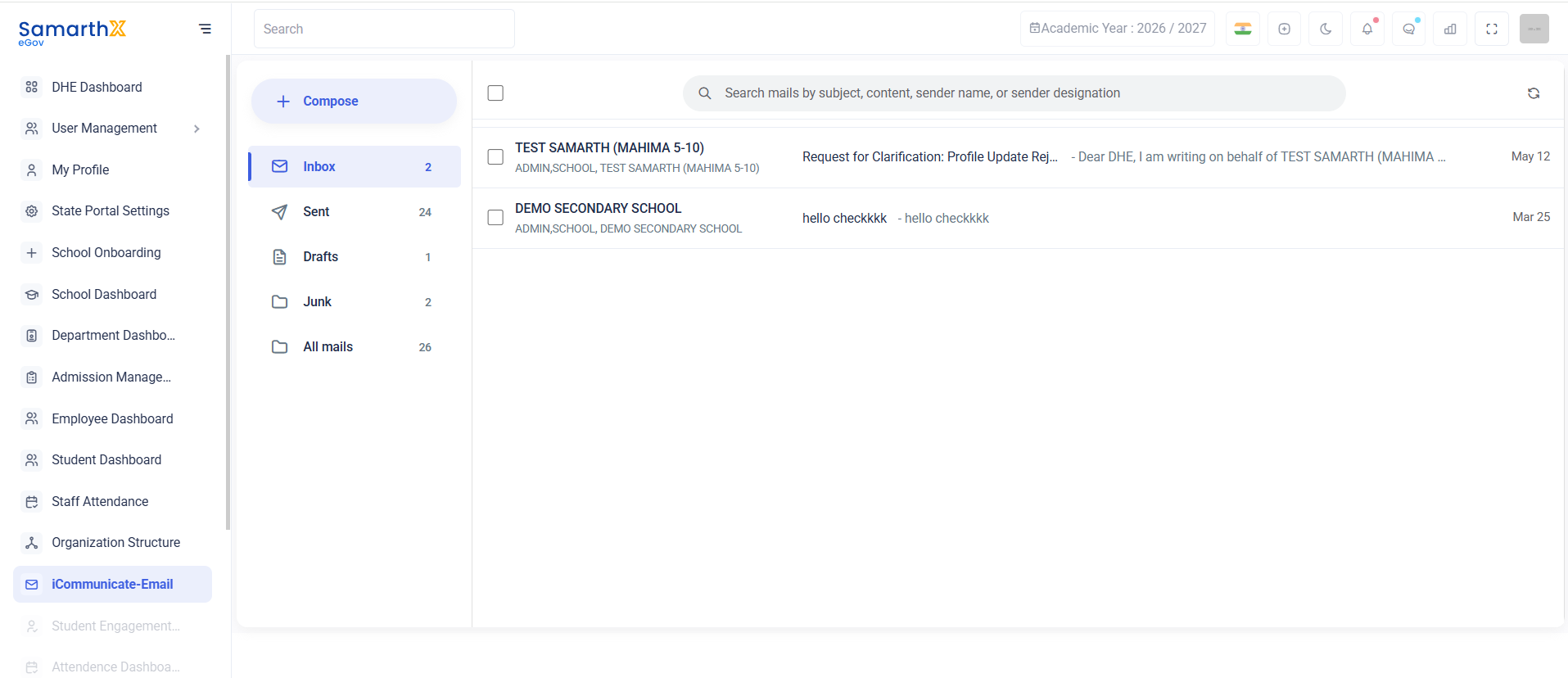
Navigation
Dashboard → iCommunicate → Inbox
Purpose
The Inbox module enables users to:
- Receive messages from other users and institutions
- View communication history
- Manage drafts and sent messages
- Search messages efficiently
- Track important communications
Mail Folders
| Folder | Description |
|---|---|
| Compose | Create and send a new message |
| Inbox | View received messages |
| Sent | View sent messages |
| Drafts | View saved draft messages |
| Junk | View spam or unwanted messages |
| All Mails | View all available messages |
Search Messages
The search bar allows users to locate messages quickly.
Search Criteria
- Subject
- Message Content
- Sender Name
- Sender Designation
Example
Search mails by subject, content, sender name, or sender designation
Inbox Messages
The Inbox displays received communications along with sender details and message previews.
Available Information
| Field | Description |
|---|---|
| Sender Name | Name of the sender |
| Sender Role | Designation or role of the sender |
| Subject | Message subject |
| Preview | Short message preview |
| Date | Message received date |
Example Messages
Request for Clarification
| Field | Value |
|---|---|
| Sender | TEST SAMARTH (MAHIMA 5-10) |
| Role | ADMIN, SCHOOL |
| Subject | Request for Clarification: Profile Update Rejection |
| Date | May 12 |
General Communication
| Field | Value |
|---|---|
| Sender | DEMO SECONDARY SCHOOL |
| Role | ADMIN, SCHOOL |
| Subject | hello checkkkk |
| Date | Mar 25 |
User Actions
Compose a Message
- Click Compose.
- Select recipient(s).
- Enter subject.
- Write the message.
- Click Send.
Read a Message
- Open Inbox.
- Select the desired message.
- Review the complete message content.
Search Messages
- Enter keywords in the search bar.
- Review matching results.
View Sent Messages
- Click Sent.
- Review previously sent communications.
Communication Workflow
Compose Message
       ↓
Send Message
       ↓
Recipient Inbox
       ↓
Read Message
       ↓
Reply / Archive
Purpose
The iCommunicate serves as the primary communication hub for schools, administrators, and departments, enabling secure and efficient information exchange within the platform.