
Leave Management
The Leave Module is used to manage and control employee leave processes within the school. It allows administrators to configure leave policies, define approval workflows, and monitor leave applications in a structured and transparent manner.
Using this module, schools can:
-
Configure different types of leaves as per state or school policies
-
Set up approval chains to define how leave requests are reviewed
-
Manage school-specific holidays and view state-declared holidays
-
Approve, reject, or delegate employee leave requests
-
Track employee leave history and automatically calculate leave balances
Top Navigation Tabs
1.Top Navigation Tabs
1.1 Approve Leave Requests
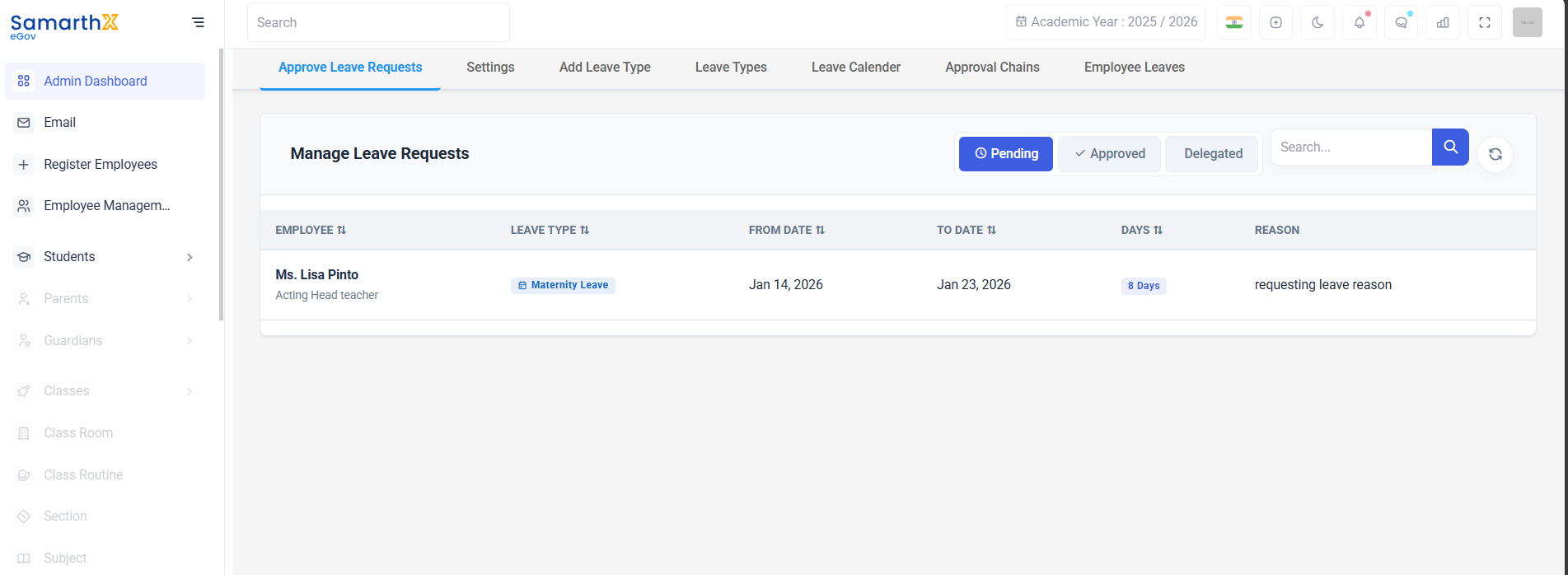
2.1.2 Settings
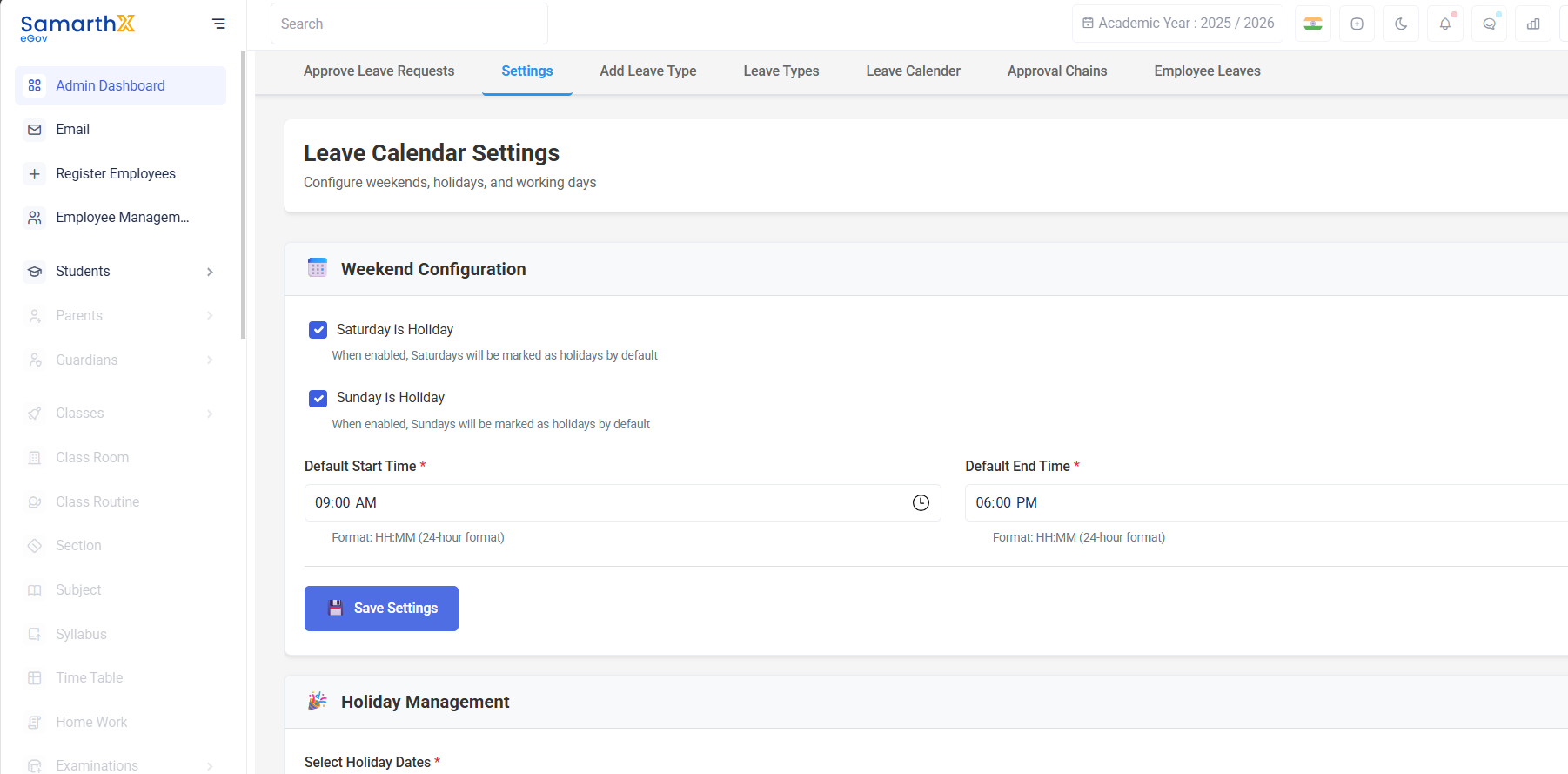
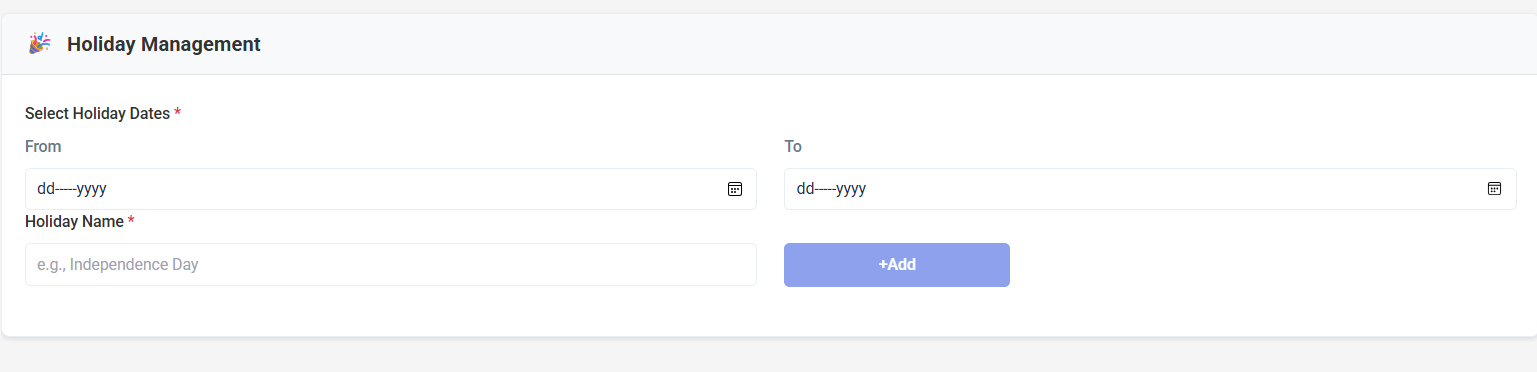
Allows schools to configure school‑specific settings, such as:
-
School holidays
-
Weekend rules (if applicable)
3.
1.3 Add Leave Type
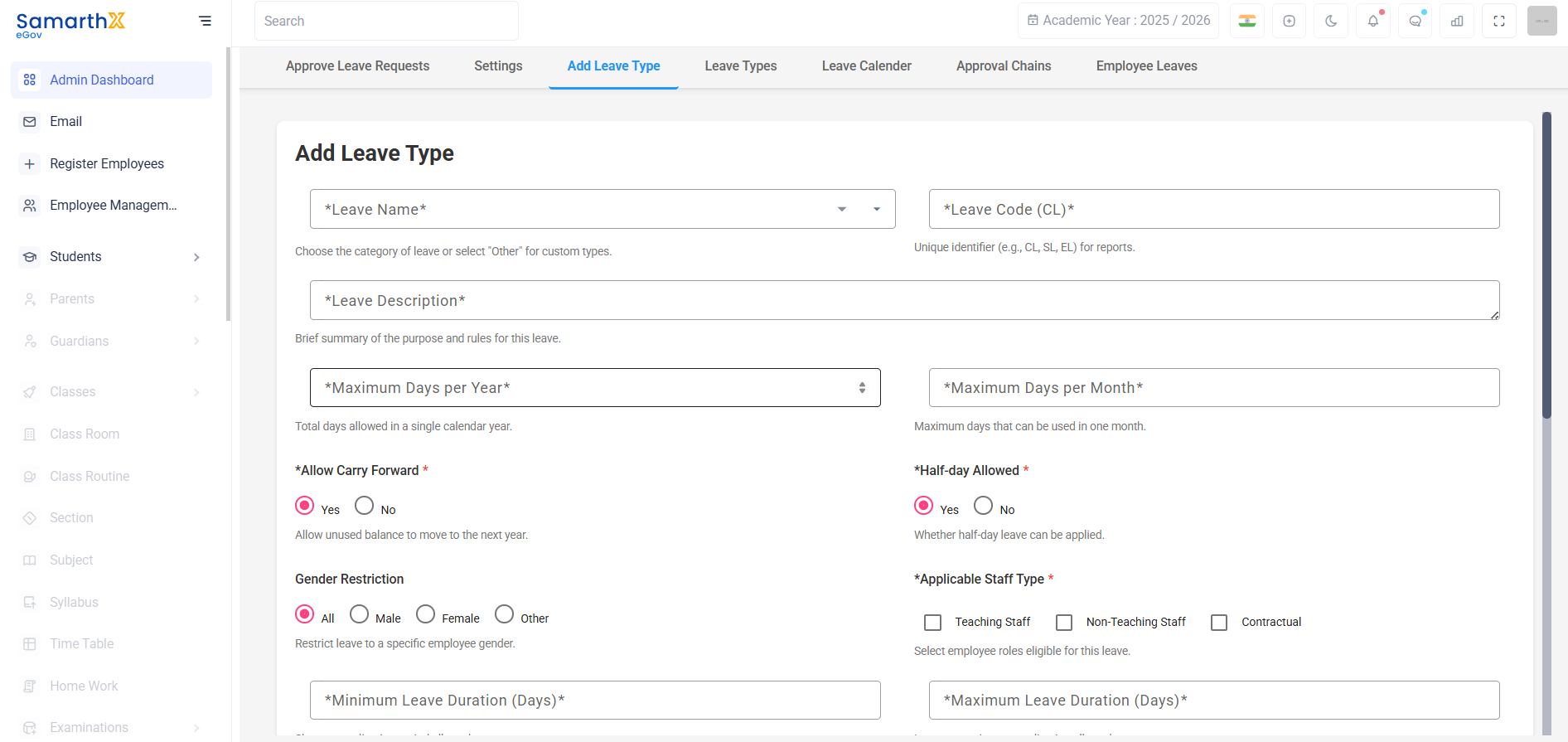
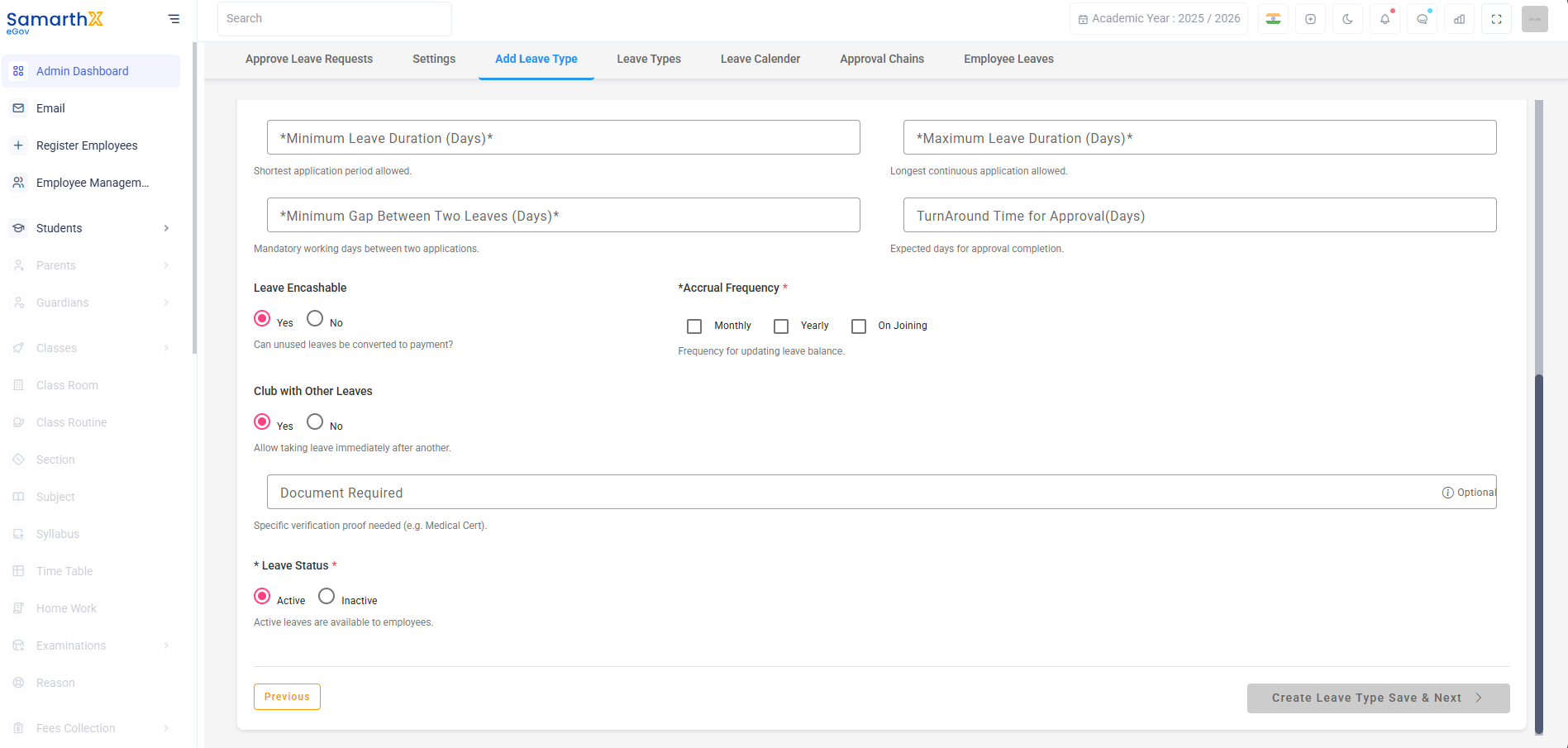
Used to create a new leave type for the school (for example: Casual Leave, Earned Leave, Compensatory Off, etc.). Newly added leave types become available to employees while applying for leave.
4.1.4 Leave Types
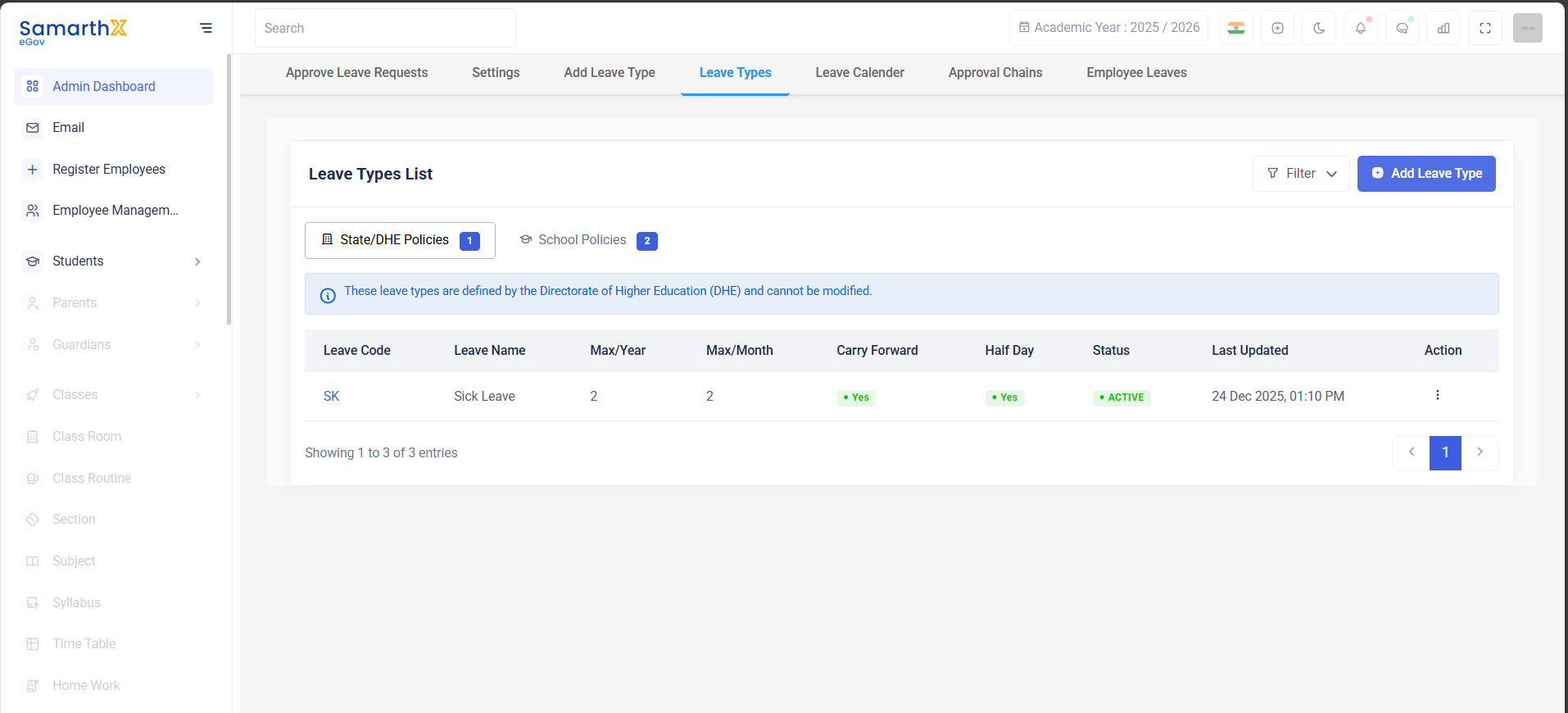
Displays all available leave types, including:
-
Leave types configured by the State/DHE
-
Leave types configured by the School
Schools can either:
-
Use State/DHE‑defined leave types, or
-
Create and manage their own leave types
5.
1.5 Leave Calendar
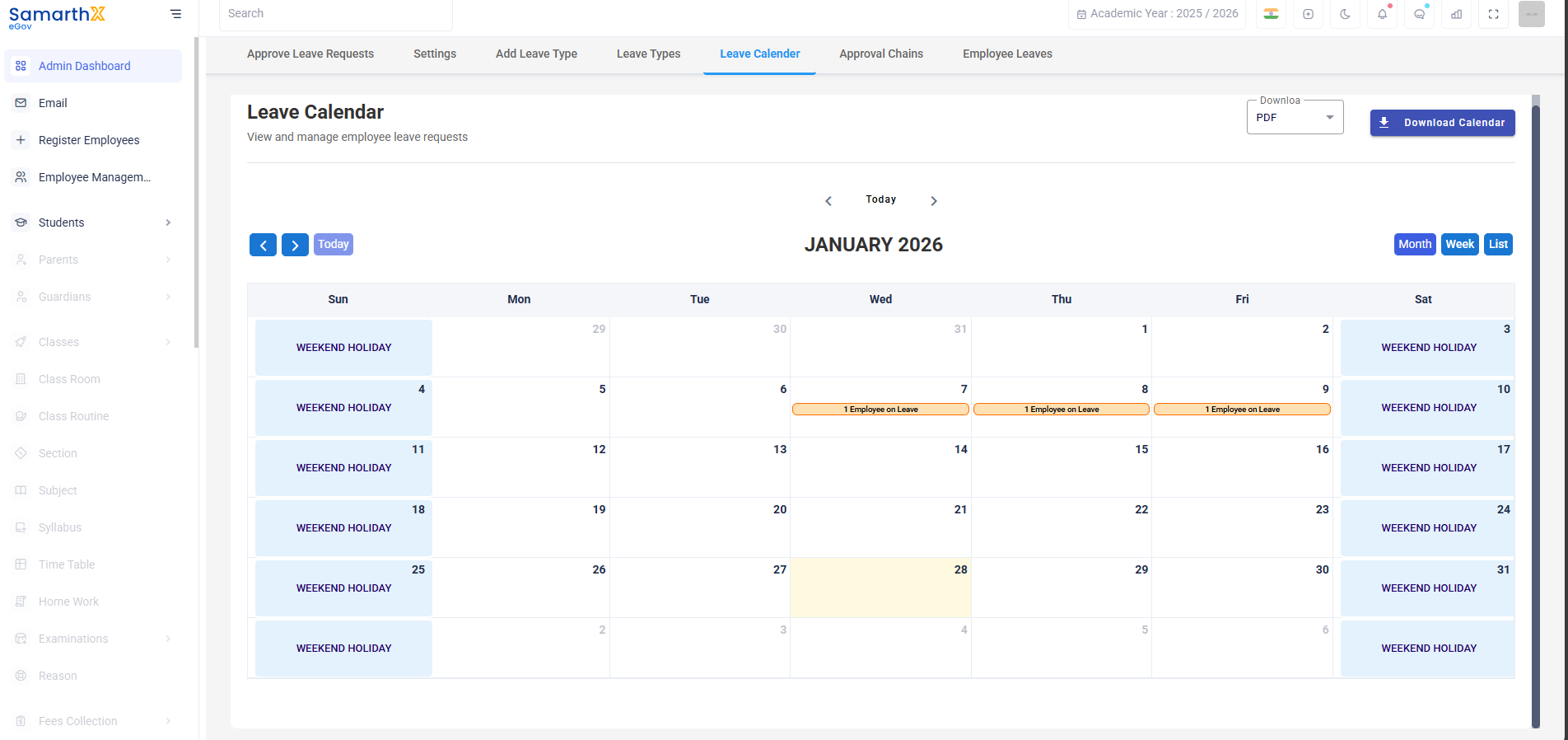
Provides a calendar view showing:
-
Employees who are on leave
-
Holidays declared by the State/DHE
-
Holidays declared by the School
This gives administrators a quick overview of workforce availability.
6.
1.6 Approval Chains
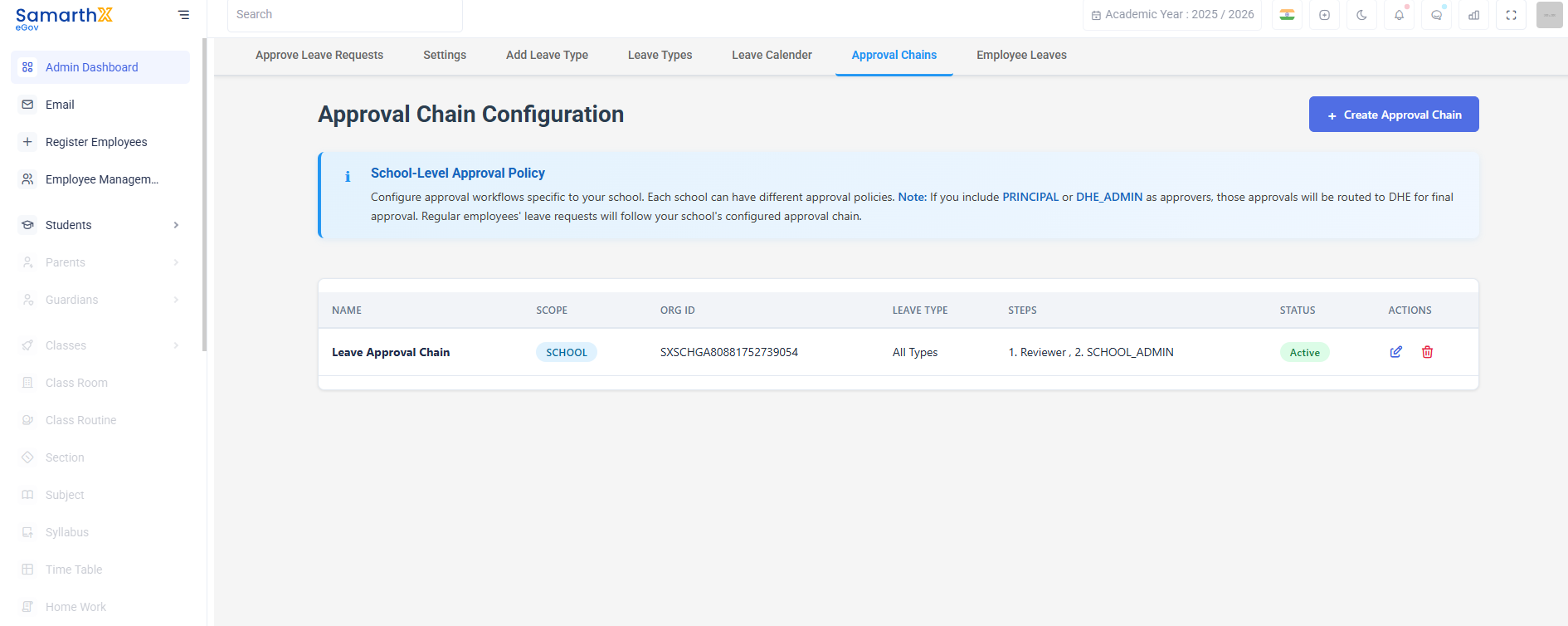
Used to define the approval workflow for leave requests. Schools can configure:
-
Who approves first
-
Multi‑level approvals (if required)
-
Role‑based approval processes
7.
1.7 Employee Leaves
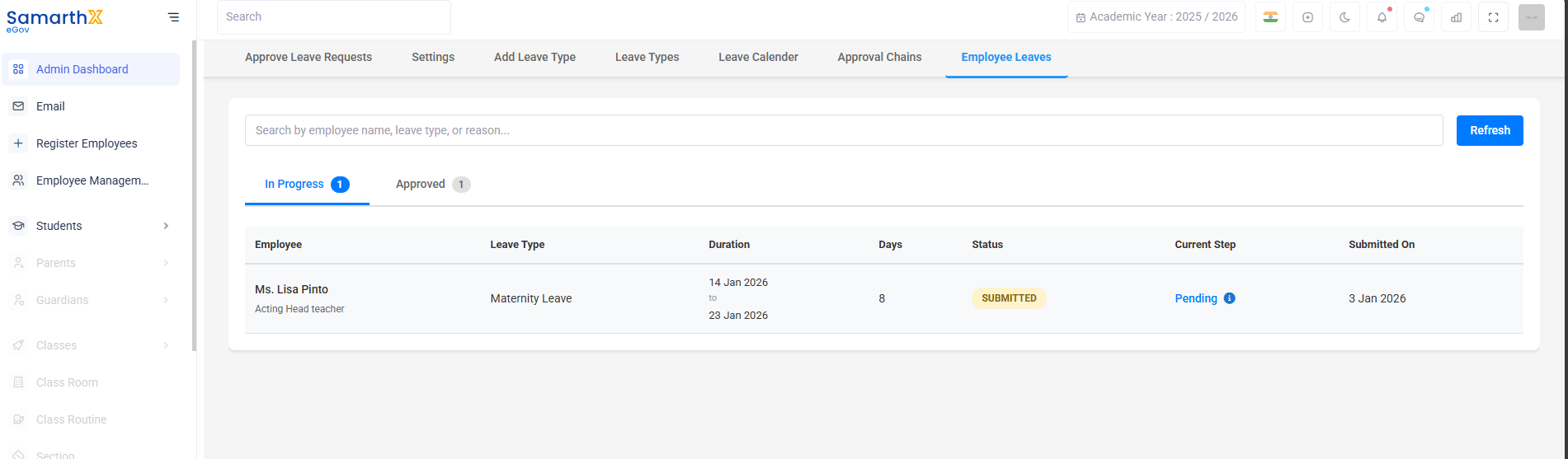
Shows the complete leave history of employees, including:
-
Approved leaves
-
Pending leave requests
-
Leave details such as dates, type, and status
Accessing Leave Types
You can manage leave types in either of the following ways:
-
Click on the Leave Types tab from the Leave module navigation, or
-
Click on Add Leave Type to directly create a new leave category
2.1 Leave Types List Section
This section displays all leave types currently available in the system.
Each leave type is shown with the following details:
-
Leave Code – Short identifier for the leave type
-
Leave Name – Name of the leave
-
Max/Year – Maximum leave allowed per year
-
Max/Month – Maximum leave allowed per month
-
Carry Forward – Indicates whether unused leave can be carried forward
-
Half Day – Indicates whether half‑day leave is allowed
-
Status – Shows whether the leave type is active or inactive
-
Last Updated – Date and time when the leave type was last modified
-
Action – Options to view or delete the leave type
2.2 Leave Type Categories
Leave types are grouped under two categories:
1.2.21 State/DHE Policies
-
These leave types are defined by the Directorate of Higher Education (DHE)
-
They are read‑only and cannot be modified or deleted by the school
-
Schools can use these leave types as‑is
2.22 School Policies
-
These leave types are created and managed by the school
-
Schools can add, view, or delete these leave types as required
2.3 Adding a New Leave Type
To create a new leave type:
-
Click on Add Leave Type (button or tab)
-
Fill in the required leave details such as:
-
Leave code and name
-
Maximum leave per year and per month
-
Carry forward and half‑day options
-
-
Save the leave type
Once created, the leave type will appear under School Policies.
2.4 Viewing or Deleting a Leave Type
-
Click on the three‑dot menu under the Action column
-
Select View to see detailed information about the leave type
-
Select Delete to remove the leave type (applicable only for school‑defined leave types)
State/DHE leave types cannot be deleted or edited.
2.5 Configuring Leave Types – First‑Time Setup
When a school uses the Leave module for the first time:
-
Review the available State/DHE leave types
-
Decide whether to use them directly or create school‑specific leave types
-
Add new leave types if required using Add Leave Type
-
Configure approval workflows in Approval Chains
-
Set school holidays using Settings
in Leave Approval ProcessImpact2.6
onUsageEmployees-
-
All active leave types are visible to employees when applying for leave
-
Leave balances are automatically calculated based on the configured rules
-
Leave approval and visibility follow the defined approval chain
-
-