
Department Dashboard-Employee Management-Single Employee Registration
Page no:1 Overview
The Single Employee Registration module allows administrators to register an individual employee through a guided multi-step process. The registration form captures employment details, personal information, contact details, address information, and employee identification records.
Navigation
Employee Management → Single Employee Registration
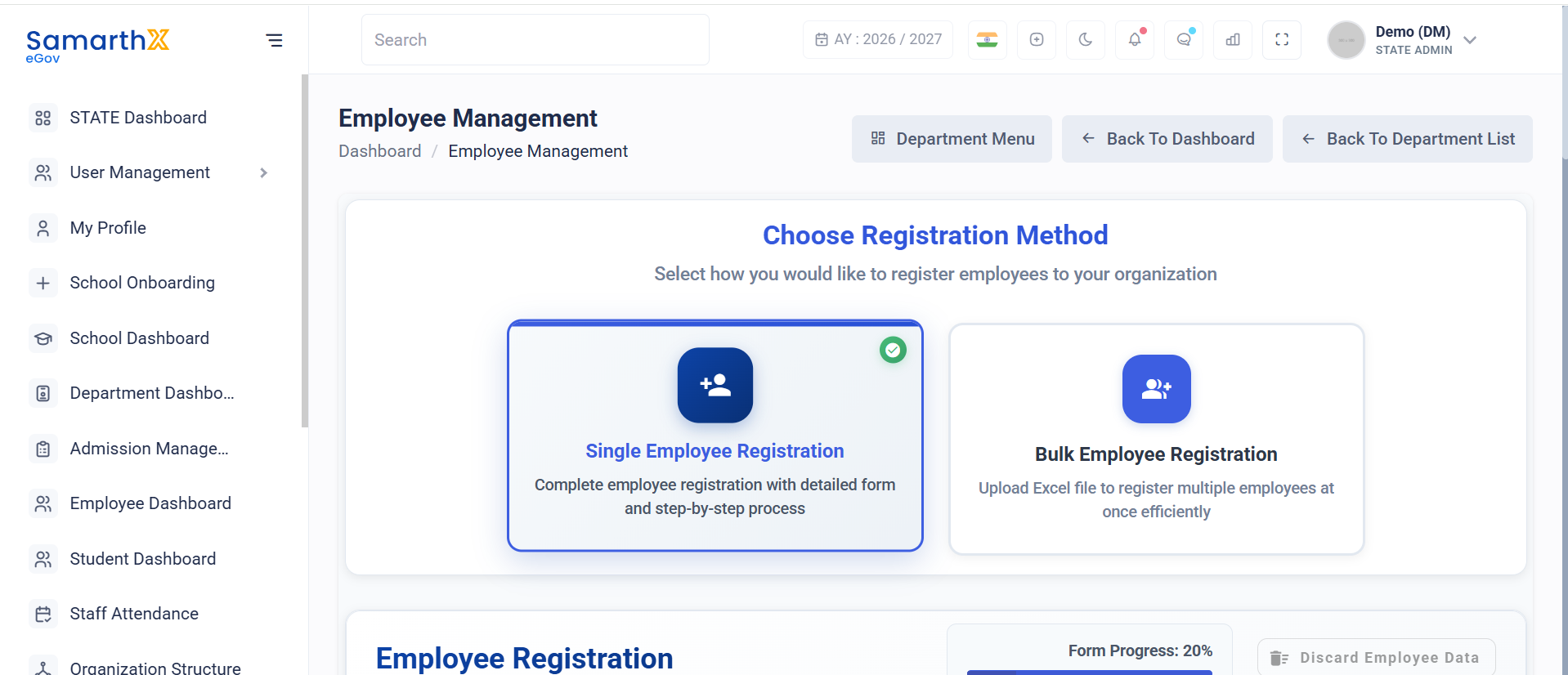
Registration Methods
The Employee Management module supports the following registration methods:
Single Employee Registration
Register an employee using a step-by-step form.
Bulk Employee Registration
Upload an Excel file to register multiple employees simultaneously.
Registration Workflow
Choose Registration Type
        │
        ▼
Basic Information
        │
        ▼
Professional Information
        │
        ▼
Contact Information
        │
        ▼
Address Information
        │
        ▼
Review & Submit
Form Progress
The registration form displays completion progress to indicate the current stage of registration.
Example
Form Progress: 20%
Current Step: Basic Information
Step 1: Basic Information
This section captures employee employment details and personal information.
Employment & Appointment Details
Associated Department
Select the department with which the employee will be associated.
Example:
North Zone
Employee Type
Select the employee category.
Available options may include:
- Teaching Staff
- Non-Teaching Staff
- Vocational Staff
- Administrative Staff
Example:
Teaching Staff
Stream
Specify the employee stream.
Example:
Main Stream
Nature of Appointment
Specify the appointment type.
Examples may include:
- Permanent
- Contractual
- Temporary
- Deputation
Date of Joining In Service
Enter the employee's first joining date in government service.
Date of Joining In Present Department
Enter the employee's joining date in the current department.
Appointed For Level
Specify the level for which the employee is appointed.
Examples may include:
- Primary
- Upper Primary
- Secondary
- Higher Secondary
Training Received
Specify training programs completed by the employee.
Training Needs
Specify future training requirements.
Personal Information
Salutation
Select employee salutation.
Examples:
- Mr.
- Mrs.
- Ms.
- Dr.
First Name
Enter the employee's first name.
Example:
John
Middle Name
Enter the employee's middle name (optional).
Last Name
Enter the employee's last name.
Example:
Doe
Gender
Select employee gender.
Date of Birth
Enter the employee's date of birth.
Social Category
Select the applicable social category.
Examples:
- General
- OBC
- SC
- ST
- EWS
Join Under Which Category
Specify the recruitment category under which the employee is appointed.
Disability Status
Indicate whether the employee has a disability.
Options:
- Yes
- No
Disability Type
Specify disability type if applicable.
Blood Group
Select employee blood group.
Examples:
- A+
- A-
- B+
- B-
- AB+
- AB-
- O+
- O-
Religion
Select employee religion.
Nationality
Specify employee nationality.
Example:
Indian
Marital Status
Select marital status.
Examples:
- Single
- Married
- Divorced
- Widowed
Identification & Legal Details
Aadhaar Card Number
Enter the employee Aadhaar number.
Example:
1234 5678 9012
Name as per Aadhaar
Enter the employee name exactly as printed on the Aadhaar card.
PAN Number
Enter employee PAN number.
Example:
ABCDE1234F
Driving License Number
Enter driving license details if available.
Teacher National Code (UDISE+)
Enter the employee's Teacher National Code issued through UDISE+.
Teacher Code of State/UT
Enter the state-issued teacher code if available.
User Actions
Administrators can:
- Select employee registration method
- Register employees individually
- Capture employment information
- Record personal details
- Store legal identification information
- Save progress and continue registration
- Proceed to subsequent registration steps
Notes
- Fields marked as mandatory must be completed before proceeding.
- Aadhaar, PAN, and Teacher Codes should be entered accurately for verification purposes.
- Department selection determines the employee's organizational assignment.
- Registration progresses through multiple stages before final submission.
- Data entered during registration is subject to organizational validation and approval processes.
No comments to display
No comments to display