
Department Employee Registration
Overview
The Department Employee Registration module allows administrators to register employees directly under a department. The registration process captures personal information, employment details, and contact information through a structured multi-step workflow.
Navigation
Department Dashboard → Department Employee Registration
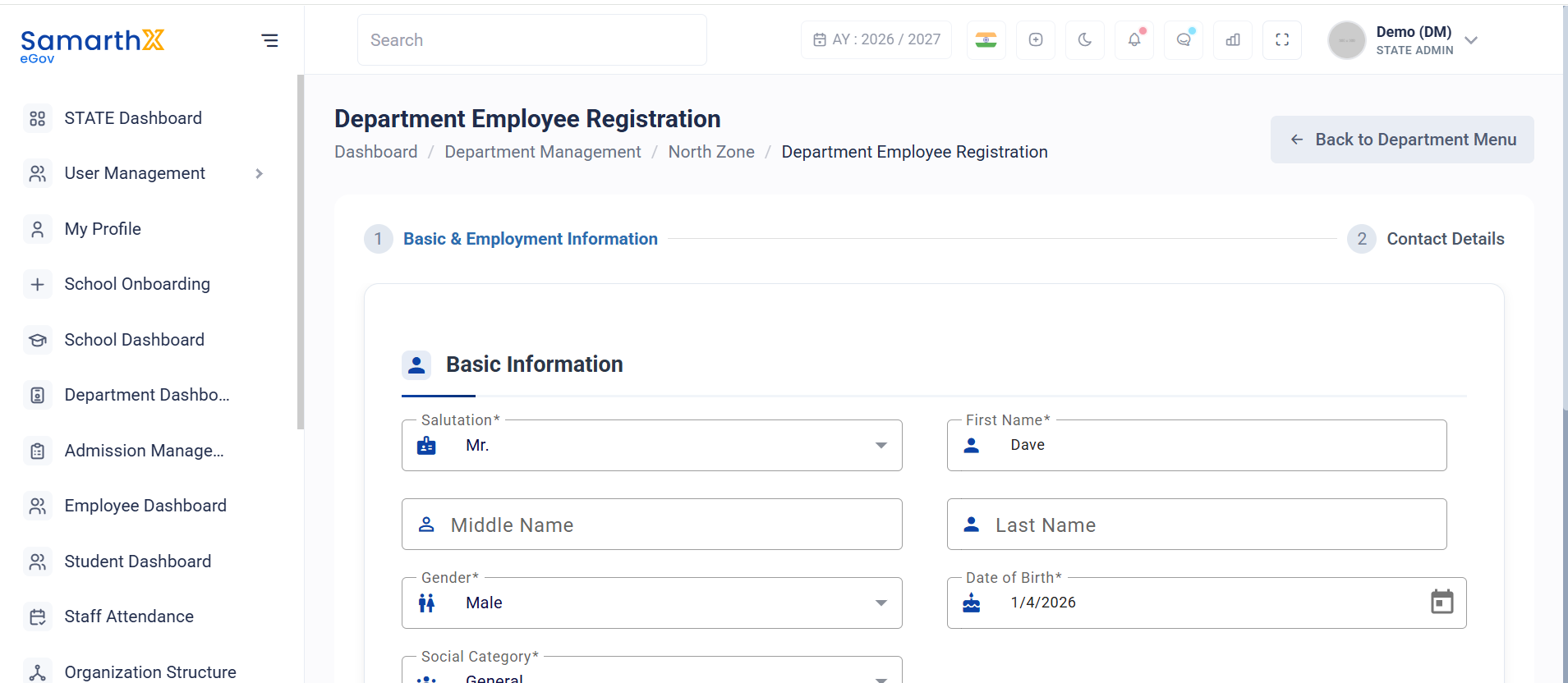
Registration Workflow
Basic & Employment Information
            │
            ▼
Contact Details
            │
            ▼
Submit Registration
Registration Steps
Step 1: Basic & Employment Information
This step captures employee personal details and employment-related information.
Step 2: Contact Details
This step captures employee communication and contact information before submission.
Step 1: Basic & Employment Information
Basic Information
The Basic Information section captures the employee's personal details.
Salutation
Select the employee salutation.
Examples:
- Mr.
- Mrs.
- Ms.
- Dr.
First Name
Enter the employee's first name.
Field Type: Text
Placeholder:
Enter first name
Middle Name
Enter the employee's middle name (optional).
Field Type: Text
Placeholder:
Enter middle name
Last Name
Enter the employee's last name.
Field Type: Text
Placeholder:
Enter last name
Gender
Select the employee's gender.
Examples:
- Male
- Female
- Other
Date of Birth
Enter the employee's date of birth.
Format:
DD-MM-YYYY
Social Category
Select the applicable social category.
Examples:
- General
- OBC
- SC
- ST
- EWS
Employment Details
The Employment Details section captures information related to the employee's appointment and qualifications.
Designation
Select the designation assigned to the employee.
The list of available designations is based on department configuration.
Examples:
- Cluster Resource Person
- Block Resource Person
- Administrative Officer
- Department Coordinator
Nature of Appointment
Select the employee's appointment type.
Examples:
- Permanent
- Contractual
- Temporary
- Deputation
Sub-Appointment Type
Select the applicable sub-category for the appointment.
The available values depend on the selected Nature of Appointment.
Highest Academic Qualification
Select the employee's highest educational qualification.
Examples:
- Higher Secondary
- Diploma
- Bachelor's Degree
- Master's Degree
- Ph.D.
- Professional Certification
User Actions
Administrators can:
- Enter employee personal information
- Select employment details
- Assign department designations
- Record educational qualifications
- Proceed to contact details
- Submit employee registration
Notes
- Fields marked as mandatory must be completed before proceeding to the next step.
- Available designations depend on the department's configured designation structure.
- Sub-Appointment Type options are determined by the selected Nature of Appointment.
- Employee registration is specific to the selected department.
- Information entered during registration is subject to validation before submission.
No comments to display
No comments to display