
Login in your School Samarthx Platform
School User Login Guide
Follow the steps below to log in to the School Portal.
Only Step 2 differs based on whether you are logging in for the first time or have already set your password.
-
-
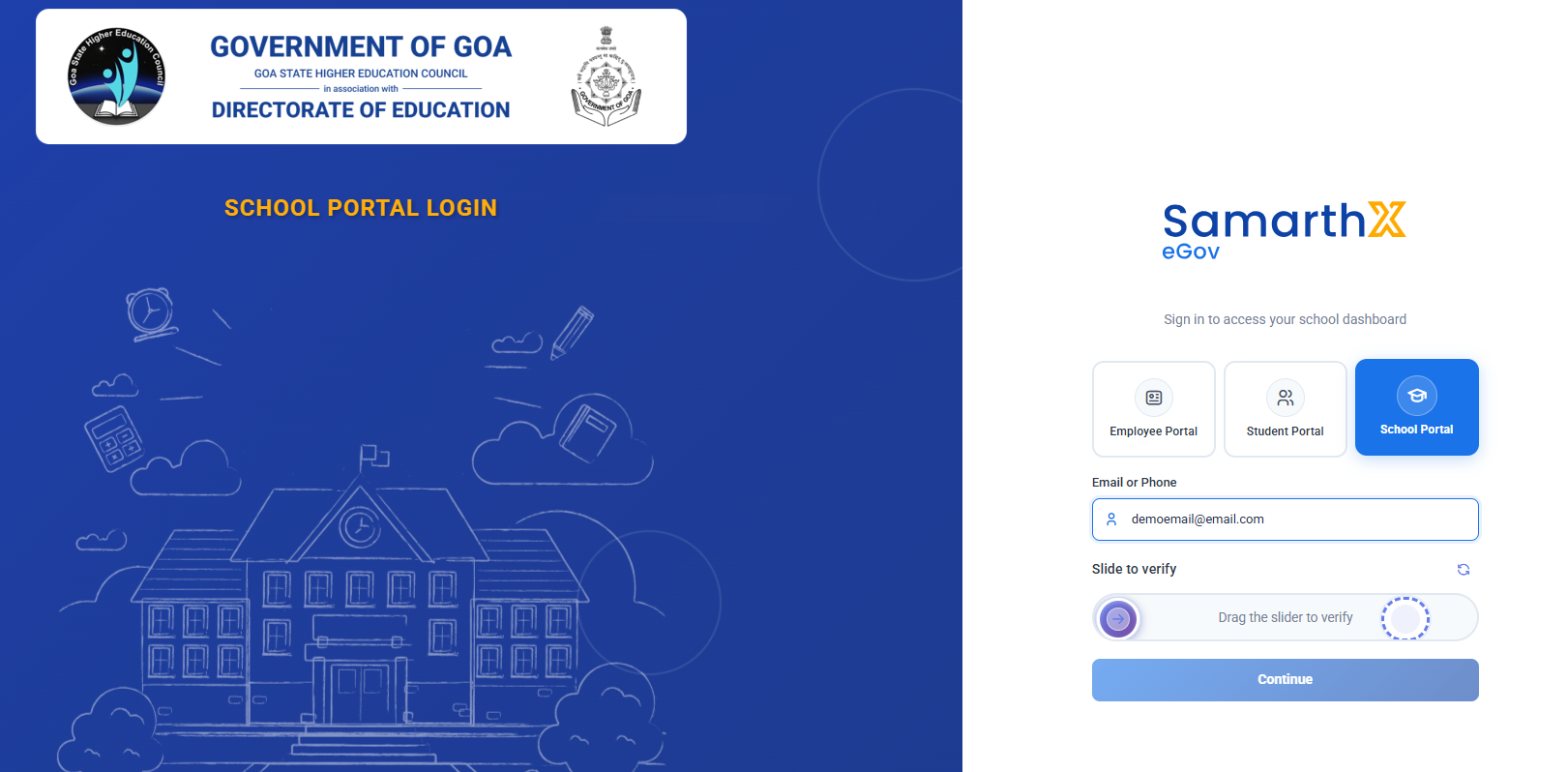
Open the SamarthX School Portal in your web browser.
-
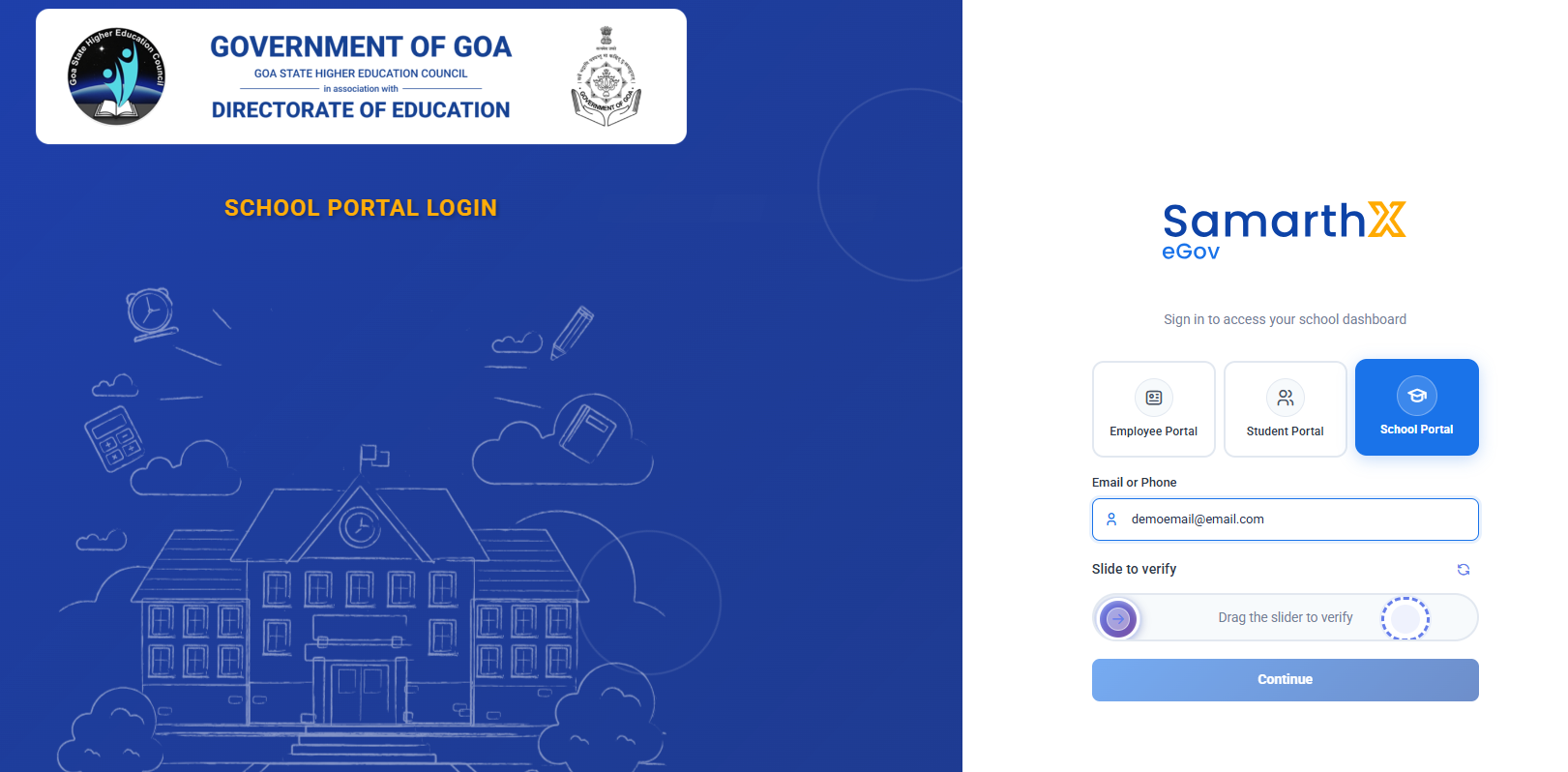
Step 1: Enter Registered Email or Phone
-
Enter the school’s official registered email ID or phone number.
-
Complete the slide to verify check.
-
Click Continue.
Step 2: Authentication
A. Password Not Set
-
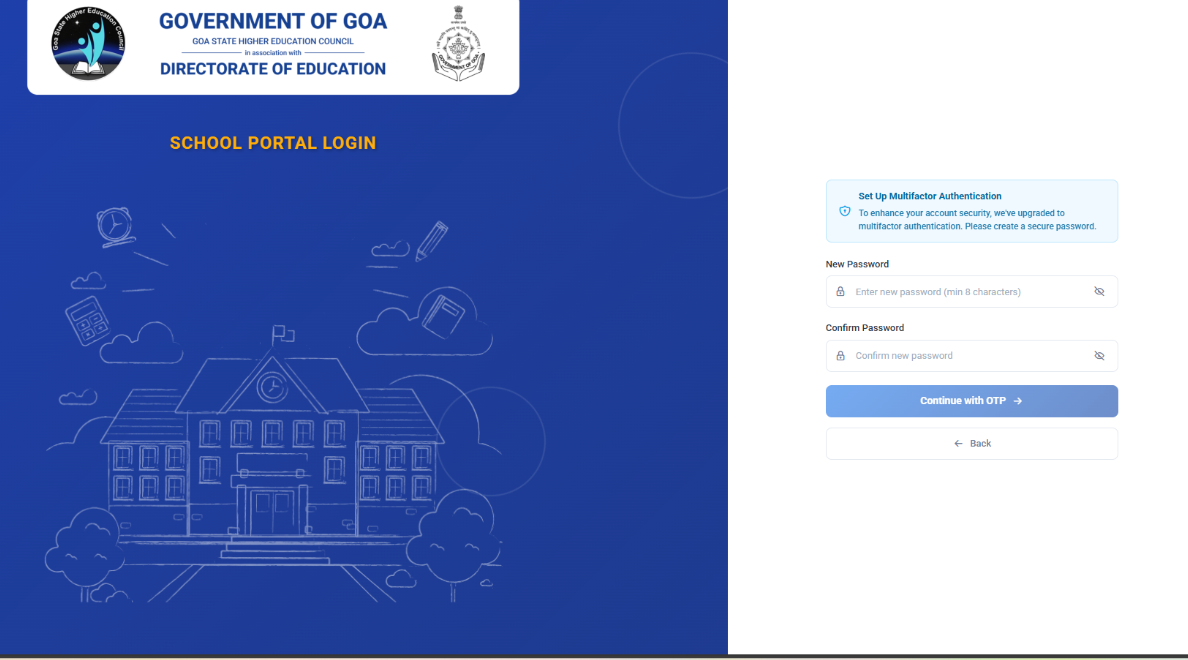
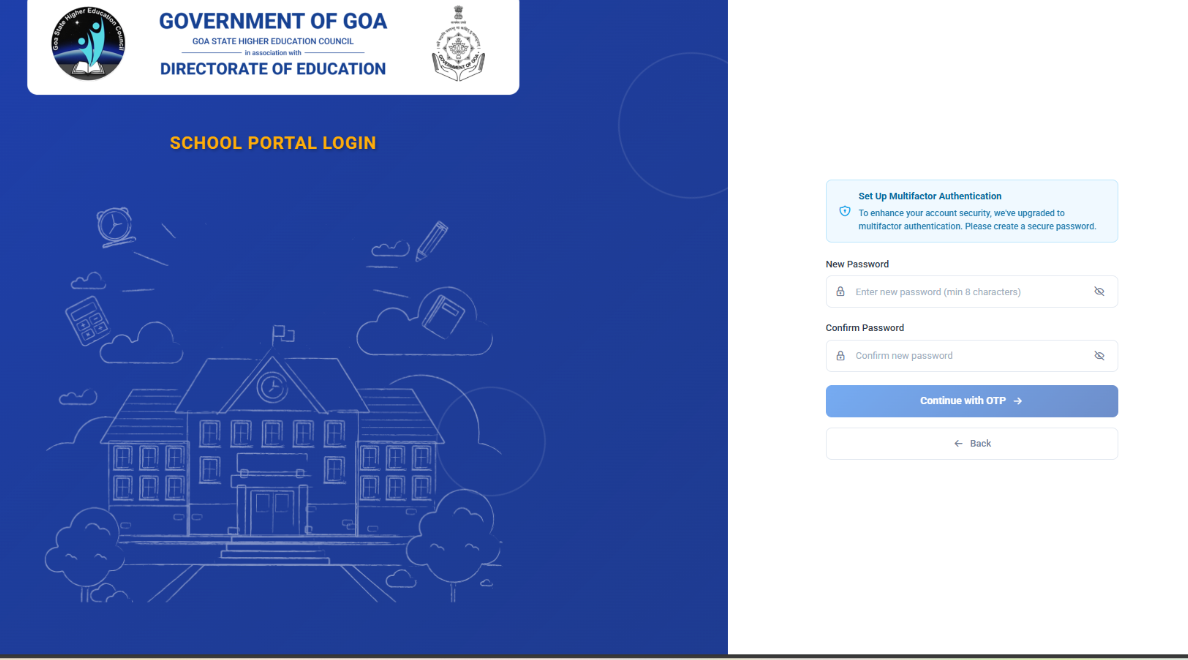
You will be prompted to create a new password.
-
Enter a new password (minimum 8 characters).
-
Confirm the password.
-
Click Continue with OTP.
-
Enter the 6-digit OTP sent to your registered email.
-
Click Verify Code to complete setup.
-
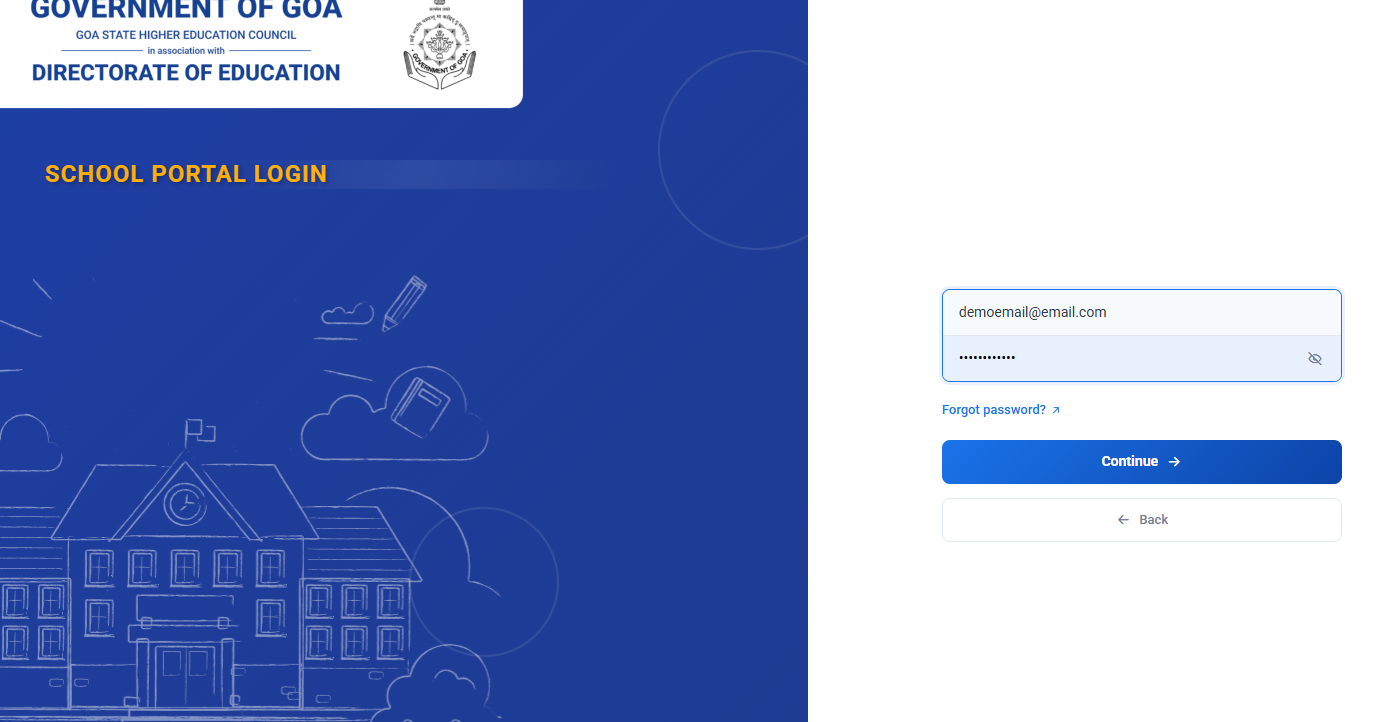
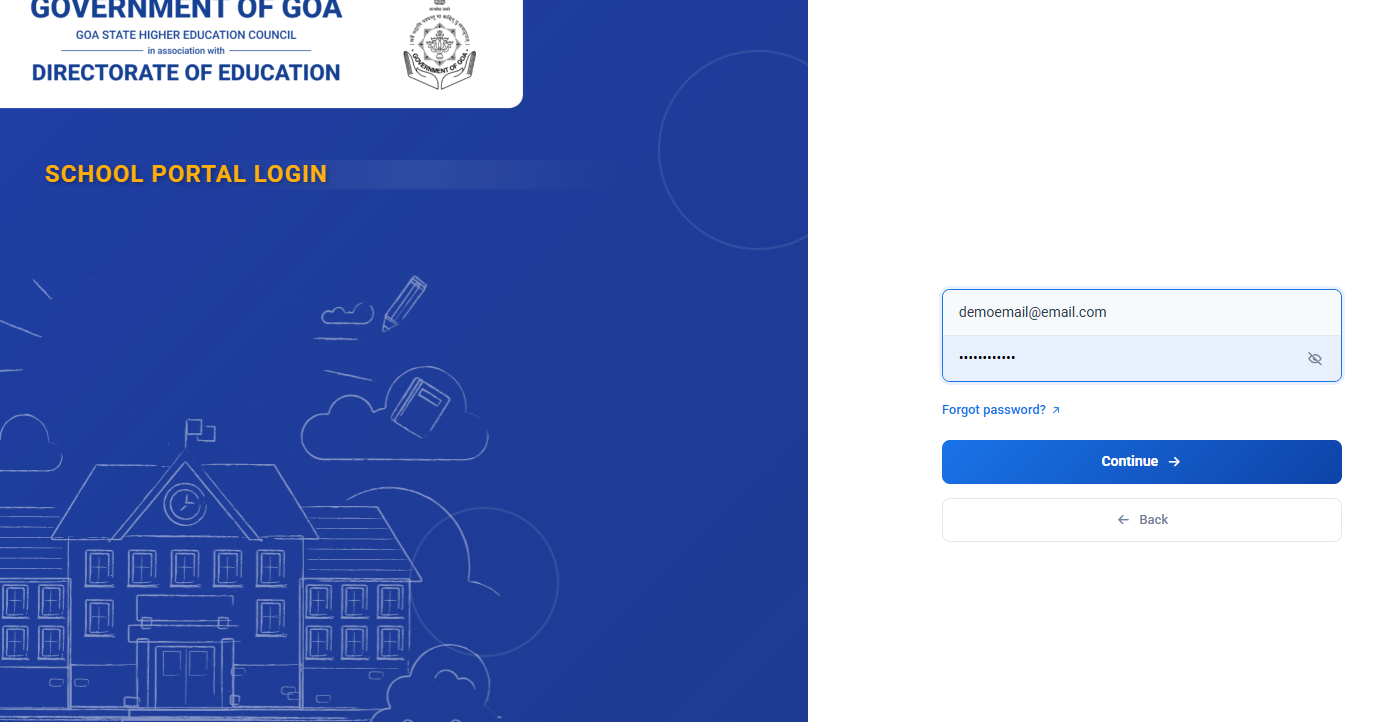
B. Password Already Set
-
Enter your password.
-
Click Continue.
-
Step 3: Verify OTP
-
A 6-digit OTP will be sent to your registered email.
-
Enter the OTP in the verification boxes.
-
OTP is valid for 10 minutes.
-
Click Verify Code.
After successful verification, you will be redirected to the School Dashboard.
No comments to display
No comments to display