
Quick Employee Registration
Page 2: Overview
The Quick Employee Registration module allows administrators to register an employee using a simplified form that captures essential employee information. This registration method is designed for faster employee onboarding while collecting the minimum required details.
Navigation
Employee Management → Single Employee Registration → Quick Registration
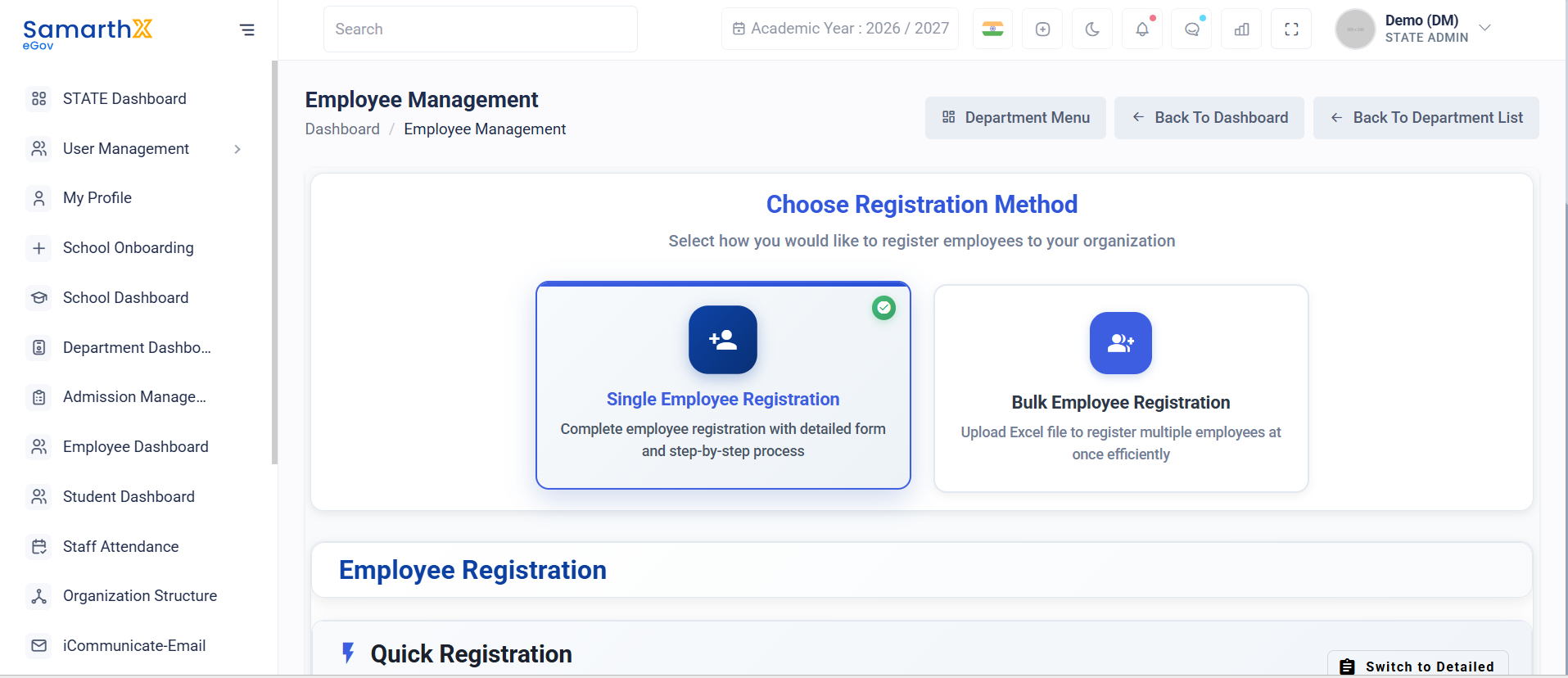
Registration Methods
The Employee Management module supports:
- Quick Registration
- Detailed Employee Registration
- Bulk Employee Registration
Quick Registration Workflow
Basic Information
        │
        ▼
Employment Details
        │
        ▼
Contact Information
        │
        ▼
Submit Registration
Basic Information
This section captures fundamental employee details.
Associated Department
Select the department to which the employee will be assigned.
Example:
North Zone
Employee Type
Select the employee category.
Examples:
- Teaching Staff
- Non-Teaching Staff
- Vocational Staff
- Administrative Staff
Example:
Teaching Staff
Stream
Specify the employee stream.
Example:
Main Stream
Nature of Appointment
Select the employee appointment type.
Examples:
- Permanent
- Contractual
- Temporary
- Deputation
Salutation
Select employee salutation.
Examples:
- Mr.
- Mrs.
- Ms.
- Dr.
First Name
Enter the employee's first name.
Example:
John
Middle Name
Enter the employee's middle name (optional).
Last Name
Enter the employee's last name.
Example:
Doe
Gender
Select employee gender.
Date of Birth
Enter the employee's date of birth.
Social Category
Select the applicable social category.
Examples:
- General
- OBC
- SC
- ST
- EWS
Join Under Which Category
Specify the recruitment category under which the employee is appointed.
Employment Details
This section captures employee service and designation information.
Date of Joining In Present Department
Enter the employee's joining date in the selected department.
Appointed For Level
Specify the educational level for which the employee is appointed.
Examples:
- Primary
- Upper Primary
- Secondary
- Higher Secondary
Highest Academic Qualification
Select the employee's highest educational qualification.
Examples:
- Higher Secondary
- Diploma
- Bachelor's Degree
- Master's Degree
- Ph.D.
Employee Designation
Select the employee designation.
Note: If no designation is available for the selected department, employee type, and stream combination, the system displays:
No designations configured for this combination. Contact your administrator.
Classes Taught
Select the classes assigned to the employee.
Examples:
- Class I – V
- Class VI – VIII
- Class IX – X
- Class XI – XII
Appointed for Subject (Main Subject Taught 1)
Select the primary subject taught by the employee.
Examples:
- Mathematics
- Science
- English
- Social Science
Appointed for Subject (Main Subject Taught 2)
Select the secondary subject taught by the employee.
Other Subject(s) Taught
Specify additional subjects handled by the employee.
Contact Information
This section captures employee communication details.
Mobile Number
Enter the employee's mobile number.
Personal Email
Enter the employee's personal email address.
User Actions
Administrators can:
- Register employees quickly using essential information
- Assign departments and employee categories
- Configure teaching assignments
- Record qualification details
- Capture contact information
- Submit employee registration requests
Notes
- Quick Registration captures only essential employee information.
- Department, employee type, and stream selections determine available designations.
- Teaching assignments can be configured during registration.
- Mobile number and email address are used for employee communication and account creation.
- Additional employee information can be completed later through the employee profile management process.
No comments to display
No comments to display