
User Management-User Guide-School Designations & Permissions-Employee Permission Mapping
Overview
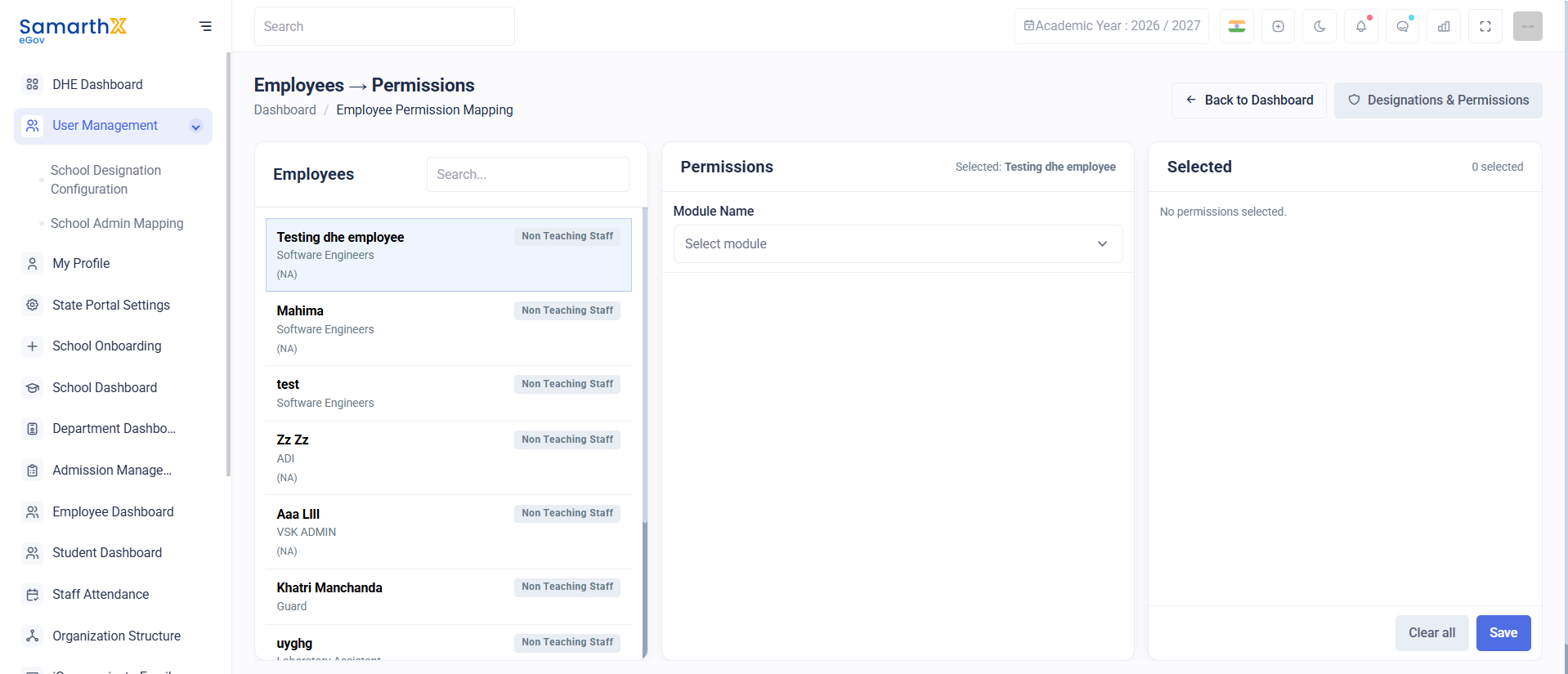
The Employee Permission Mapping module allows administrators to assign and manage system permissions for individual employees. Permissions can be granted based on job responsibilities, designation, and organizational requirements.
Navigation
Dashboard → Employee Permission Mapping → Employees → Permissions
Purpose
The Employee Permission Mapping page enables administrators to:
- Assign permissions to employees
- Control module-level access
- Manage role-based system access
- Review employee permission assignments
- Enforce organizational security policies
Employee Selection
The left panel displays a list of employees available for permission assignment.
Employee Information Displayed
| Field | Description |
|---|---|
| Employee Name | Name of the employee |
| Designation | Assigned designation or role |
| Employee Type | Employee category |
| Additional Information | Organization-specific details |
Permission Assignment Panel
After selecting an employee, the permission assignment panel is displayed.
Selected Employee
Displays the currently selected employee.
Example:
Selected: Testing dhe employee
Module Selection
Administrators can select a module to assign permissions.
Field
| Field | Description |
|---|---|
| Module Name | System module for which permissions will be assigned |
Permission Selection
Displays available permissions for the selected module.
Information Displayed
| Field | Description |
|---|---|
| Selected Count | Number of permissions currently selected |
| Permission List | Available permissions for the chosen module |
Permission Mapping Workflow
Select Employee
        ↓
Select Module
        ↓
View Available Permissions
        ↓
Select Required Permissions
        ↓
Save Permission Mapping
        ↓
Permissions Applied
User Actions
Assign Permissions
- Select an employee from the employee list.
- Choose a module from the Module Name dropdown.
- Select the required permissions.
- Save the changes.
Modify Permissions
- Open the employee's permission settings.
- Add or remove permissions as required.
- Save the updated configuration.
Review Permissions
- Select an employee.
- Review assigned permissions by module.
- Verify access levels.
Access Control
Purpose
The Employee Permission Mapping module provides centralized control over employee access rights, ensuring secure and efficient management of system permissions across organizational modules.
No comments to display
No comments to display