
Leave Managment- Dashboard
Page3: Add Leave Type
The Add Leave Type feature allows administrators to create and configure leave categories for employees.
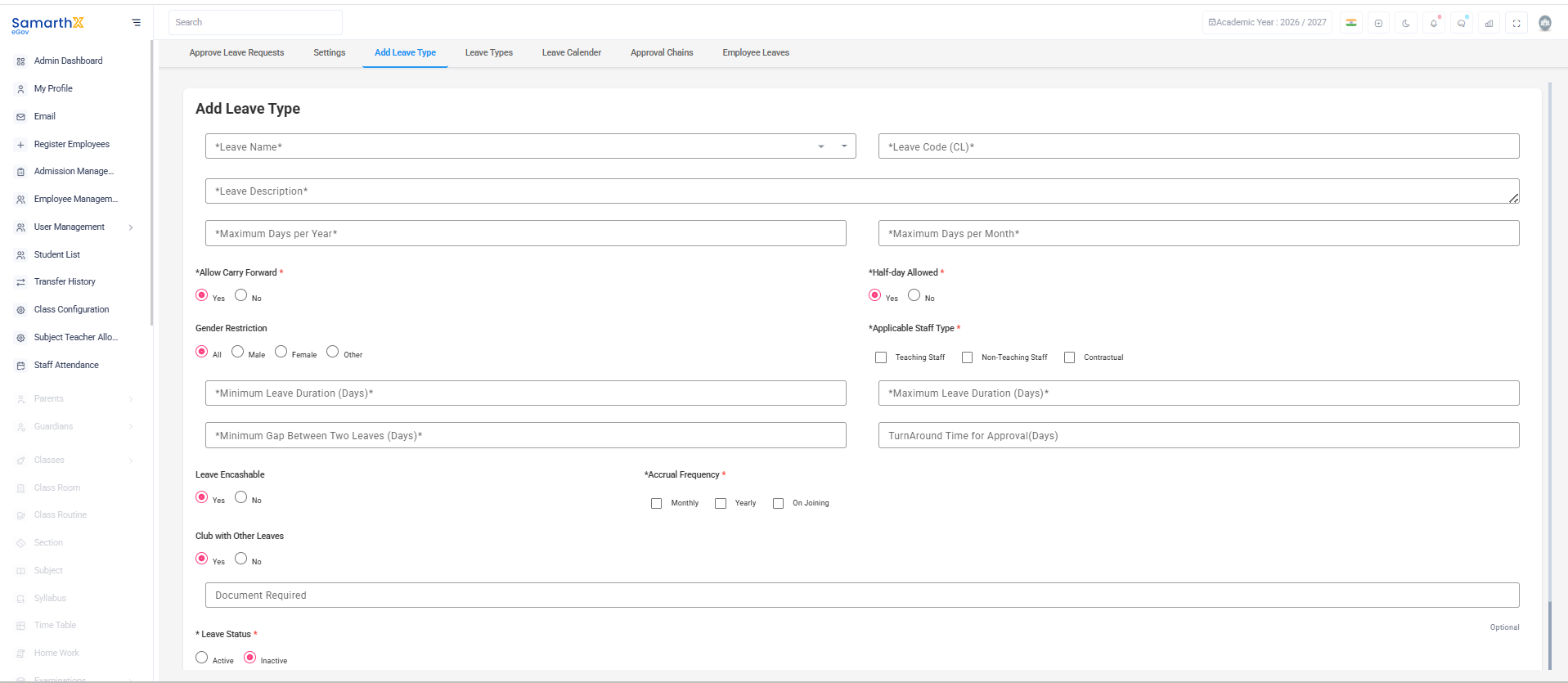
Leave Details
Enter the basic leave information:
- Leave Name – Name of the leave type.
- Leave Code – Unique short code for the leave.
- Leave Description – Brief description of the leave.
Leave Limits
Configure leave entitlement rules:
- Maximum Days per Year
- Maximum Days per Month
- Minimum Leave Duration (Days)
- Maximum Leave Duration (Days)
- Minimum Gap Between Two Leaves (Days)
Leave Configuration
Set leave behavior and eligibility:
- Allow Carry Forward – Enable or disable carry-forward of unused leave.
- Half-day Allowed – Enable or disable half-day leave.
- Leave Encashable – Specify whether leave can be encashed.
- Club with Other Leaves – Allow or restrict combining with other leave types.
- Document Required – Specify supporting documents, if required.
Employee Eligibility
Configure applicability of the leave type:
-
Gender Restriction
- All
- Male
- Female
- Other
-
Applicable Staff Type
- Teaching Staff
- Non-Teaching Staff
- Contractual
Approval Settings
Configure approval workflow settings:
- Turnaround Time for Approval (Days)
- Accrual Frequency
- Monthly
- Yearly
- On Joining
Leave Status
Set the leave type status:
- Active – Available for employee use.
- Inactive – Not available for new leave applications.
Note: Leave types should be configured carefully as they directly affect leave allocation, eligibility, and approval processes.
No comments to display
No comments to display