
State Portal Setting- User Guide
Portal Customization
Manage login backgrounds and header banners for various portals.
Navigation
Dashboard → Customization → Portal Customization
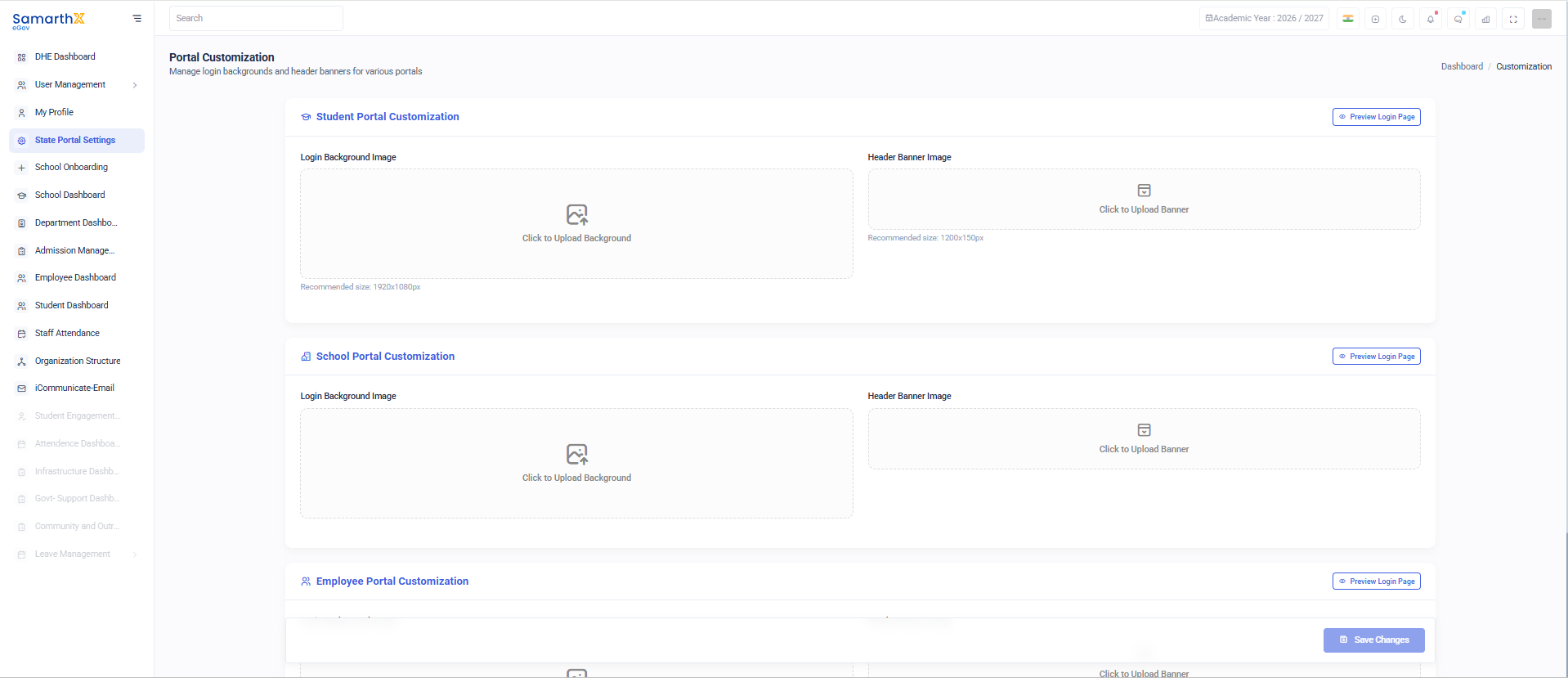
Student Portal Customization
Customize the appearance of the Student Portal.
Login Background Image
| Field | Description |
|---|---|
| Login Background Image | Upload a background image for the student login page. |
| Action | Click Upload Background to select an image. |
| Recommended Size | 1920 × 1080 pixels |
| Supported Formats | JPG, JPEG, PNG |
Header Banner Image
| Field | Description |
|---|---|
| Header Banner Image | Upload a banner to be displayed in the portal header. |
| Action | Click Upload Banner to select an image. |
| Recommended Size | 1200 × 150 pixels |
| Supported Formats | JPG, JPEG, PNG |
School Portal Customization
Customize the appearance of the School Portal.
Login Background Image
| Field | Description |
|---|---|
| Login Background Image | Upload a background image for the school login page. |
| Action | Click Upload Background to select an image. |
| Recommended Size | 1920 × 1080 pixels |
| Supported Formats | JPG, JPEG, PNG |
Header Banner Image
| Field | Description |
|---|---|
| Header Banner Image | Upload a banner to be displayed in the portal header. |
| Action | Click Upload Banner to select an image. |
| Recommended Size | 1200 × 150 pixels |
| Supported Formats | JPG, JPEG, PNG |
Employee Portal Customization
Customize the appearance of the Employee Portal.
Login Background Image
| Field | Description |
|---|---|
| Login Background Image | Upload a background image for the employee login page. |
| Action | Click Upload Background to select an image. |
| Recommended Size | 1920 × 1080 pixels |
| Supported Formats | JPG, JPEG, PNG |
Header Banner Image
| Field | Description |
|---|---|
| Header Banner Image | Upload a banner to be displayed in the portal header. |
| Action | Click Upload Banner to select an image. |
| Recommended Size | 1200 × 150 pixels |
| Supported Formats | JPG, JPEG, PNG |
General Guidelines
- Use high-quality images for better visual appearance.
- Maintain the recommended image dimensions for optimal display.
- Ensure uploaded images align with organizational branding.
- Avoid excessive file sizes to improve page loading performance.
- Preview the portal after uploading images to verify proper alignment and visibility.
Result
After saving the customization:
- The uploaded background image will appear on the respective portal login page.
- The uploaded banner image will be displayed in the portal header.
- Student, School, and Employee portals can have independent branding and visual themes.
No comments to display
No comments to display